 MetaStocker
CSV & exports
How to Prepare Separate Envato and Freepik Metadata Exports
Preparing one metadata sheet for several stock platforms is tempting, especially when the same image set is being submitted everywhere. The safer approach is to treat each export as a platform-specific package. Envato and Freepik may require different fields, naming conventions, limits, or upload steps, and a CSV produced for one destination should not be assumed to work unchanged in the other. MetaStocker can generate separate Envato and Freepik CSV choices, but it does not upload or submit them, and an export is not proof that a marketplace will accept every row. This guide uses one hypothetical gardening image set to show a practical review workflow. The example is editorial, not a measured result or a real customer submission.
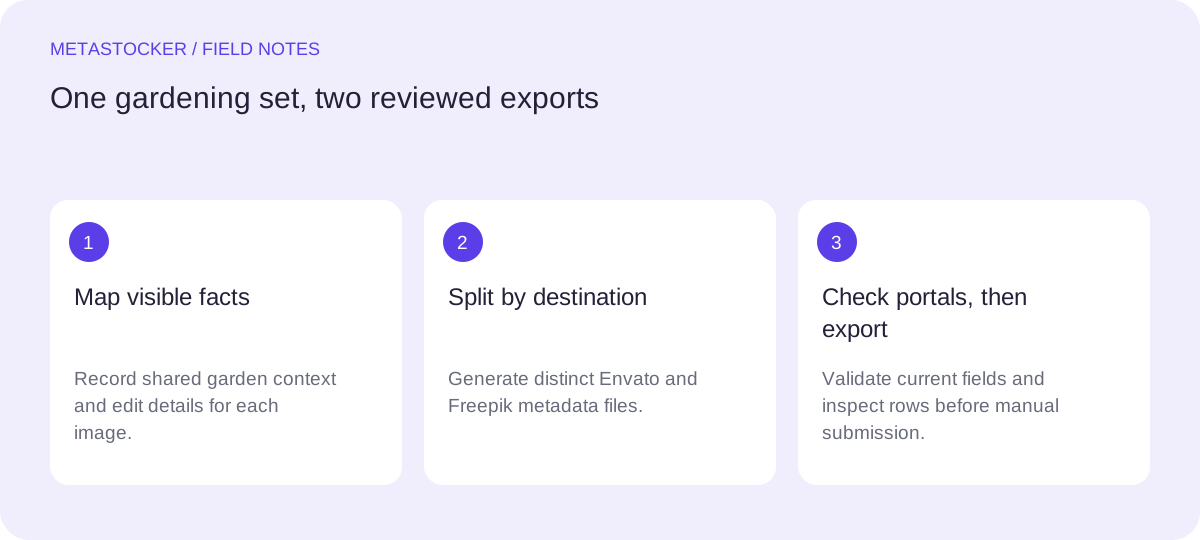
Start with one factual content brief
Before generating anything, write a short brief describing what is visibly present in the set. For this example, the set contains a person’s gloved hands planting basil seedlings in a raised garden bed, a metal trowel, dark soil, and a small wooden plant label. The images are commercial-style garden content, not documentary coverage.
Keep the brief factual and narrow. Do not add a location, season, ownership claim, plant variety, or demographic description unless the image and your records support it. A batch description is context for generation, not a license to apply every word to every file. If one image shows only the trowel and soil, its metadata should be edited separately.
- List visible subjects, actions, setting, orientation, and useful concepts.
- Mark uncertain details for removal rather than turning them into keywords.
- Separate shared batch facts from details that belong to individual files.
Shared brief: hands planting basil seedlings in raised garden bed; trowel; soil; wooden label.
File-specific note: close-up of seedling, no hands visible.
Create a clean filename map
Export accuracy starts with identity. Use stable filenames such as basil-bed-01.jpg and basil-bed-02.jpg, then keep those exact names, including extensions and letter case, in your working folder. Envato’s stock video CSV guidance specifically relies on exact filenames, and the same discipline makes any platform review easier.
Do not rename files after creating the metadata unless you update the mapping. A CSV can look perfectly formatted while pointing to the wrong asset. Before exporting, compare the rows with the actual files and remove any row for an image you will not submit.
- Keep one row per actual asset.
- Check spelling, extension, and capitalization.
- Use a separate copy of the CSV for each destination.
Choose Envato as its own export
Select the Envato output when the destination is Envato. Its requirements vary by content type, so first identify whether the submission is a photo, video, or another item type. Photos and video allow up to 50 tags according to the current item information guidance, while other item types can have different limits. Relevant established compound terms may be appropriate, but every tag still needs to describe the file.
A generated CSV is a starting point. Review the title or description, tags, filename mapping, and any platform-specific columns against the current item upload instructions. For stock video, CSV metadata support exists, but a description and other platform fields may still need attention. Do not assume that an Envato stock-video schema applies to every Envato category.
- Confirm the current requirements for the exact Envato content type.
- Keep tags relevant and remove repeated or speculative terms.
- Check whether the portal asks for fields beyond the generated CSV.
Choose Freepik as a separate export
Use the Freepik output as a distinct working file rather than editing the Envato CSV into a universal template. MetaStocker can produce a Freepik CSV choice, but the app’s export option does not establish Freepik’s current submission rules. Check the contributor portal for the required columns, language, tag limits, description format, and filename rules before importing or copying anything.
This matters when both platforms use familiar labels such as title, description, and keywords. Similar column names do not mean identical validation. If Freepik requires a field that Envato does not, add or correct it in the Freepik-specific workflow. If the portal has changed since your last submission, follow its current instructions and inspect the imported values.
- Treat the Freepik file as a destination-specific deliverable.
- Verify current portal requirements before relying on column names.
- Do not promise that one CSV can be uploaded to both platforms unchanged.
Worked example: review before export
Here is a hypothetical review of three files from the gardening set. The first image clearly shows hands planting basil seedlings. The second is a wider view with a raised bed and tools. The third is a close-up of soil and a seedling, with no visible hands. I would generate context from the shared brief, then edit each row so its wording matches the individual frame.
For Envato, I would check the current photo requirements and keep a concise descriptive title with relevant tags, staying within the applicable limit. For Freepik, I would open the current contributor guidance and map the same facts into the fields that Freepik currently requests. The third row would not retain “gloved hands” merely because the batch contains hands in other images. If the portal rejects a column or requires another field, I would correct only that platform’s file.
The tradeoff is a little more review time in exchange for clearer platform separation and fewer misleading rows. The generator can validate a requested tag count, but that does not validate accuracy, rights, or marketplace acceptance.
- File 01: planting basil seedlings; hands, gloves, soil, trowel.
- File 02: raised garden bed; seedlings, gardening tools, outdoor planting.
- File 03: seedling emerging from soil; close-up; no hands visible.
Envato row concept:
Filename: basil-bed-01.jpg
Title: Gloved hands planting basil seedlings in a raised garden bed
Tags: basil, seedlings, planting, gardening, raised bed, soil, trowel, gloves

Freepik row concept:
Filename: basil-bed-01.jpg
Description: Gloved hands plant basil seedlings in a raised garden bed with soil and a trowel.
Platform fields: complete according to the current Freepik contributor portal.
Inspect, export, and keep control of submission
Review the editable results before exporting. Only export rows that are ready, and open the CSV as text or in a spreadsheet to confirm that commas, quotes, line breaks, filenames, and empty fields are handled correctly. Then keep Envato and Freepik files in clearly named folders so a later upload cannot use the wrong destination.
MetaStocker exports metadata; it does not upload, submit, guarantee acceptance, embed metadata into original files, or preserve unfinished work after a tab closes. In local mode, generation runs in the visitor’s browser after the model is downloaded, rather than on an AI server. If using the optional personal OpenAI API mode, treat the key as secret and understand that previews and context are sent to OpenAI. Finally, check the contributor portals immediately before submission because policies and field requirements can change.
- Open and inspect each destination CSV before use.
- Upload or submit manually through the relevant contributor portal.
- Keep original files unchanged and retain a reviewed metadata copy.
Before you continue
- Write a factual brief and remove unsupported assumptions.
- Verify every filename, extension, and case.
- Generate separate Envato and Freepik exports.
- Check each platform’s current contributor requirements.
- Review titles, descriptions, tags, and platform-specific fields per file.
- Inspect the final CSVs and submit manually through the correct portal.
Sources and editorial approach
Prepared with AI assistance. Worked examples are illustrative. Automated checks do not replace checking the requirements of your stock platform. How these guides are made.