 MetaStocker
CSV & exports
How to Find Duplicate Rows in a Stock Metadata CSV
A duplicate CSV row is easy to miss when a batch contains many files, but it can make one image carry conflicting metadata during import. The most useful duplicate check is not simply counting identical lines: compare the filename after normalizing its spelling, then inspect whether the title, keywords, category, or release field disagrees. This guide uses one concrete example and a repeatable review process. The example is hypothetical and is not a measured result or a real customer case.
The worked file contains two rows for the same asset, “coffee-pour.jpg”. One row describes a close-up of coffee being poured into a ceramic cup; the other incorrectly treats the same filename as a coffee bag product photo. The goal is to identify the conflict, choose the evidence-supported row, and export only a clean set of records.
1. Start with the asset, not the CSV
Before judging a duplicate, confirm what the filename actually refers to. A filename is an identifier, not evidence of what appears in the image. Open the asset and check the visible subject, action, and setting. Do not infer a person’s identity, ownership, location, ingredients, or materials from pixels alone.
For this example, the shoot notes supplied by the photographer say: “Studio still life; coffee is poured into a ceramic cup; a kraft coffee bag is placed behind the cup; no brand is identified.” These are the nonvisual facts available for the review. They can support careful wording, but they do not justify inventing a coffee origin, owner, recipe, or commercial brand.
- Keep the original extension and exact case visible.
- Separate shoot notes from observations made only from the image.
- Treat an uncertain detail as a detail to omit, not a keyword to force.
2. Detect duplicates by normalized filename
Make filename comparison the first pass. Match the complete filename, including its extension and character casing, because the upload platform may require an exact match. For a review copy, you can also create a normalized comparison value that trims accidental spaces and standardizes case. Keep the original filename unchanged in the export.
In the worked example, both records contain coffee-pour.jpg, so they belong to one duplicate group. A filename such as coffee-pour.JPG may be a separate issue for a platform that treats case as significant; do not silently merge it without checking the current contributor instructions.
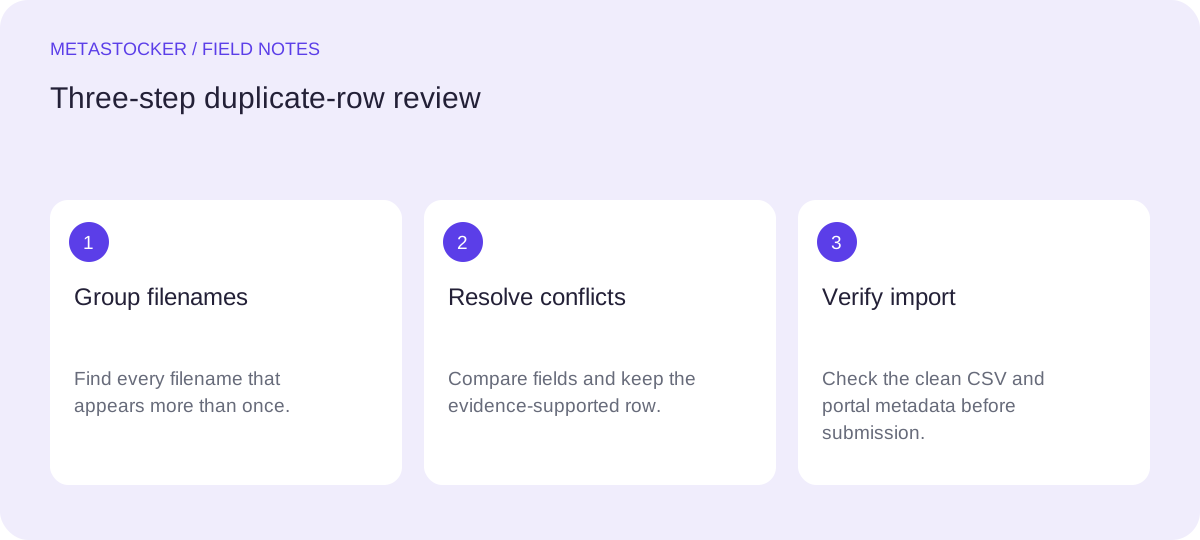
- Group rows by exact filename first.
- Flag groups with more than one row.
- Then compare every metadata field inside each group.
Duplicate group
filename: coffee-pour.jpg
row 14: coffee poured into ceramic cup; keywords include coffee, pouring, cup
row 37: packaged coffee bag product; keywords include bag, packaging, brand
3. Compare fields, not just row text
Two rows can look different because their keyword order differs, while still describing the same approved metadata. Conversely, a small wording change can reveal a major conflict. Compare title, keyword list, category, release filename, and any platform-specific fields separately.
In this example, the first row is supported by both the image and the shoot notes. The second row overstates the subject as a product-packaging image and includes “brand,” although the notes say no brand is identified. The kraft bag is visible, so “coffee bag” could be relevant if it is genuinely prominent, but the row must not turn an unidentified object into a branded product.
- Mark harmless ordering differences separately from factual conflicts.
- Look for unsupported identity, ownership, location, or brand claims.
- Check whether a release field belongs to this exact asset.
4. Choose the surviving row using evidence
Do not resolve a duplicate by choosing the longer title or the row with more keywords. Select the row that accurately represents the asset and complies with the destination marketplace’s current rules. Relevant terms should describe the work; repeated or irrelevant terms weaken the record.
For the hypothetical example, keep one corrected row with the title “Coffee poured into ceramic cup with coffee bag in background.” Retain keywords such as coffee, pouring, ceramic cup, beverage, and still life only if they accurately describe the image. Remove “brand” because no brand is identified. If the bag is visually minor, omit coffee bag rather than giving it equal weight to the main action.
- Prefer one defensible row over several competing guesses.
- Place the most important terms early when the destination guidance calls for prioritization.
- Use the destination platform’s current keyword and title limits.
5. Review the clean export before import
After resolving each duplicate group, run the check again on the proposed export. The final file should contain one row for coffee-pour.jpg, with the filename spelled exactly as the uploaded asset. Adobe’s current CSV guidance requires exact headers and supports filename, title, and keywords, with optional fields such as category and release information. Current limits and upload rules should still be checked on the contributor portal.
If you use MetaStocker to generate or edit metadata, review the editable results per file and export only rows that are ready. Its exporter creates CSV files but does not upload or submit them, and it does not embed metadata into the original files. That separation makes the duplicate review an explicit step before import.
- Recount filenames after deduplication.
- Confirm required headers and current platform limits.
- Open the CSV as plain text or in a spreadsheet to inspect the final row.
6. Import cautiously and verify in the portal
Upload the corresponding assets before importing a CSV where the marketplace requires that order. Exact filename and case matching matter. After import, inspect the resulting metadata in the contributor portal rather than assuming that a valid CSV was accepted correctly.
Marketplace policies and upload screens can change, so check the current contributor portal immediately before submission. A duplicate-free file reduces one avoidable source of confusion, but it does not guarantee acceptance, visibility, sales, or search ranking. Google website indexing is a separate subject from internal stock marketplace search; this CSV workflow addresses marketplace metadata only.
- Keep a reviewed copy of the CSV for your records.
- Verify the imported row against the asset, especially after a large batch.
- If a conflict remains, pause the import and correct the CSV.
Before you continue
- Open the asset and read the available shoot notes.
- Group rows by complete filename, including extension and case.
- Flag every filename with more than one row.
- Compare titles, keywords, categories, and release fields.
- Remove unsupported claims such as an unidentified brand.
- Keep one evidence-supported row per asset.
- Check current marketplace CSV requirements.
- Upload assets first when required, then verify imported metadata in the portal.
Sources and editorial approach
Prepared with AI assistance. Worked examples are illustrative. Automated checks do not replace checking the requirements of your stock platform. How these guides are made.