 MetaStocker
CSV & exports
How to Export Stock Metadata CSV and Match Filenames Safely
A metadata CSV is useful only when every row points to the correct uploaded asset. One changed filename, a different letter case, or a missing extension can leave metadata unmatched or attached to the wrong file. This guide shows a cautious workflow for three assets: two JPG images and one MOV video, including one punctuation mismatch and one renamed file. The example uses MetaStocker to generate and export editable metadata, but the reconciliation method also applies when you prepare CSV rows elsewhere. Treat the file as a mapping document, not as an upload shortcut: the marketplace still controls its current requirements and acceptance process.
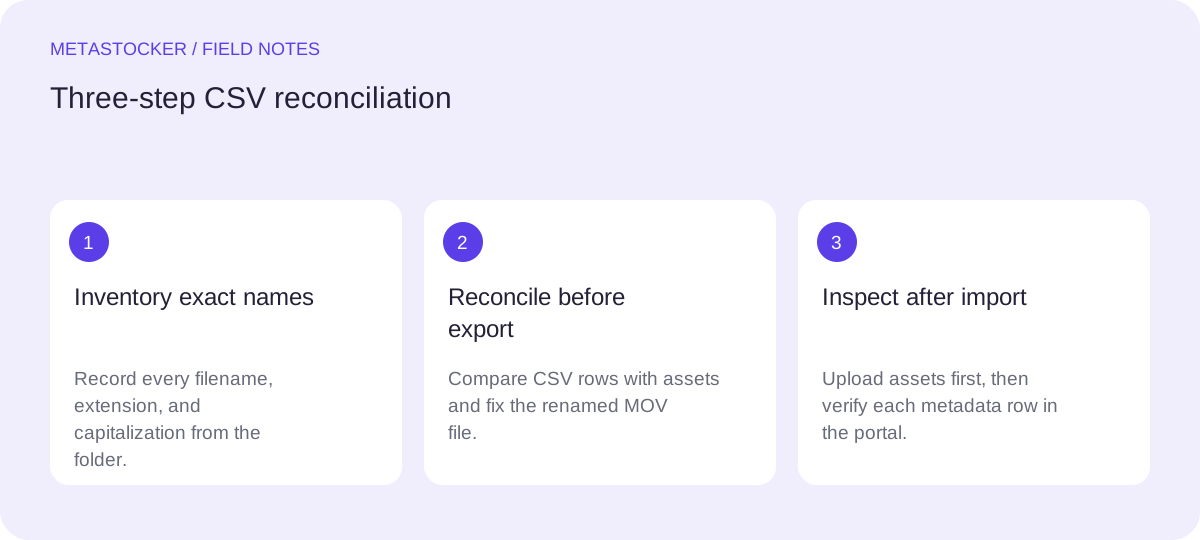
1. Define the asset set before generating metadata
Create a small inventory before opening the exporter. Record the exact filename, extension, intended marketplace, and whether the item is a photo or video. Preserve the spelling and capitalization from the actual folder. Do not rely on a shortened display name or a remembered filename.
For this example, the folder contains three files: city_bridge.JPG, coffee-cup.jpg, and metro_night.MOV. The contributor later renamed the video to metro-night.MOV, while the CSV draft still contains metro_night.MOV. That is a filename change, not a metadata problem, and it should be resolved before import.
- Use the exact extension, including .jpg or .mov.
- Treat uppercase and lowercase as meaningful until the target portal confirms otherwise.
- Keep one inventory row per asset.
Inventory before export
city_bridge.JPG | image
coffee-cup.jpg | image
metro-night.MOV | video
2. Generate useful metadata with clear context
If you use MetaStocker, local mode runs the selected model in the browser through WebGPU workers. The first model download requires internet access, and model memory is different from browser cache. Start with one local thread and review results file by file. The app can accept images and videos, but video descriptions are based on sampled previews, so inspect the complete motion yourself.
Give a batch description only when it is true for every selected asset. In this example, the shared context is too broad, so generate the two images together and the video separately. Keep extra tags relevant to each file; a tag that fits the bridge should not automatically appear on the coffee image.
- Describe visible subject, setting, action, and useful technical context.
- Do not infer identities, locations, releases, species, or other sensitive facts from pixels.
- Edit generated results before exporting.
3. Keep marketplace rules separate from the CSV workflow
A CSV schema is marketplace-specific. Adobe Stock maps filenames to titles and keywords and may include category and release filename fields. Its current CSV guidance gives a 70-character title limit; use a conservative maximum of 49 keywords and check the current upload screen before importing. Other marketplaces can use different fields or limits, so do not assume one exported schema fits every destination.
For Adobe Stock, metadata language must match the contributor account. Put the most important terms early, especially among the first ten keywords. A concise descriptive title is safer than a keyword list. If you later prepare Shutterstock or Envato metadata, consult their current contributor requirements separately; a platform’s rules can change.
- Choose the destination before exporting.
- Validate title length, language, keyword count, and required fields.
- Never treat a valid-looking CSV as proof of acceptance.
4. Reconcile names using the actual folder as authority
Before uploading a CSV, compare the exported filename column with the files that will be uploaded. Compare the complete string, including extension and case. Do not fix a mismatch by changing only the CSV unless the corresponding asset name is intentionally changed too. Decide which name is authoritative, then make both sides identical.
In the worked example, city_bridge.JPG matches exactly. coffee-cup.jpg also matches. The video has a mismatch: the folder contains metro-night.MOV, but the CSV contains metro_night.MOV. Rename the CSV value to metro-night.MOV, or rename the asset back to metro_night.MOV if that better fits your archive. After the decision, repeat the comparison; do not continue with a remembered correction.
- Check spelling, punctuation, extension, and capitalization.
- Resolve renamed files before import.
- Do not silently merge two assets that merely have similar names.
Reconciliation table
CSV value          Folder value       Action
city_bridge.JPG    city_bridge.JPG     Keep
coffee-cup.jpg     coffee-cup.jpg      Keep
metro_night.MOV    metro-night.MOV     Change CSV to metro-night.MOV
5. Inspect rows before exporting the final CSV
Open the editable metadata results and inspect each row against its preview. Confirm that the title describes the correct asset, keywords are relevant rather than repetitive, and the video row does not claim details absent from the sampled or full footage. Remove blanket tags that do not apply to all files.
Export only rows that are ready. Keep a simple preflight record showing the final filename, title status, keyword status, and destination. MetaStocker exports CSV formats for several stock platforms, but it does not upload or submit the file, embed metadata into originals, guarantee acceptance, or preserve unfinished work after a tab closes.
- Preview the asset beside its metadata row.
- Check the filename again after edits.
- Export a fresh final file after reconciliation.
6. Upload assets first, then inspect the imported metadata
For Adobe Stock, upload the assets before importing the CSV. The filenames, including extensions and case, must match. After import, inspect the resulting metadata in the contributor portal rather than assuming that a successful file selection means every row matched.
If a row is missing or attached incorrectly, stop and correct the source names and CSV. Marketplace policies and upload screens can change, so check the current contributor portal instructions at the time of submission. The CSV is a convenience for transferring fields; your final review remains the safety check.
Before you continue
- Inventory every asset using its exact filename and extension.
- Resolve renamed, case-sensitive, and punctuation mismatches.
- Generate metadata with asset-specific context.
- Review titles, keywords, language, and platform limits.
- Export only reconciled, ready rows.
- Upload assets first when the marketplace requires it.
- Inspect imported metadata in the contributor portal.
- Check current marketplace requirements before submission.
Sources and editorial approach
Prepared with AI assistance. Worked examples are illustrative. Automated checks do not replace checking the requirements of your stock platform. How these guides are made.