 MetaStocker
Titles & keywords
How to Find Missing Adobe Stock Keywords Automatically
Missing keywords are often not the result of having too few ideas. They usually come from skipping one part of the image: the subject, its visible details, or the composition. A close photograph of a wet leaf, for example, may need terms for moisture, texture, focus, and background as well as the obvious word “leaf.” Local AI can suggest those omissions, but it cannot turn an uncertain visual guess into a reliable fact. The useful workflow is an audit: generate candidates, test every term against the pixels, then place the strongest terms first in Adobe Stock metadata. This guide uses MetaStocker as a drafting aid and a macro photograph of a dew-covered leaf as a hypothetical example, not as a measured result or a real customer case.
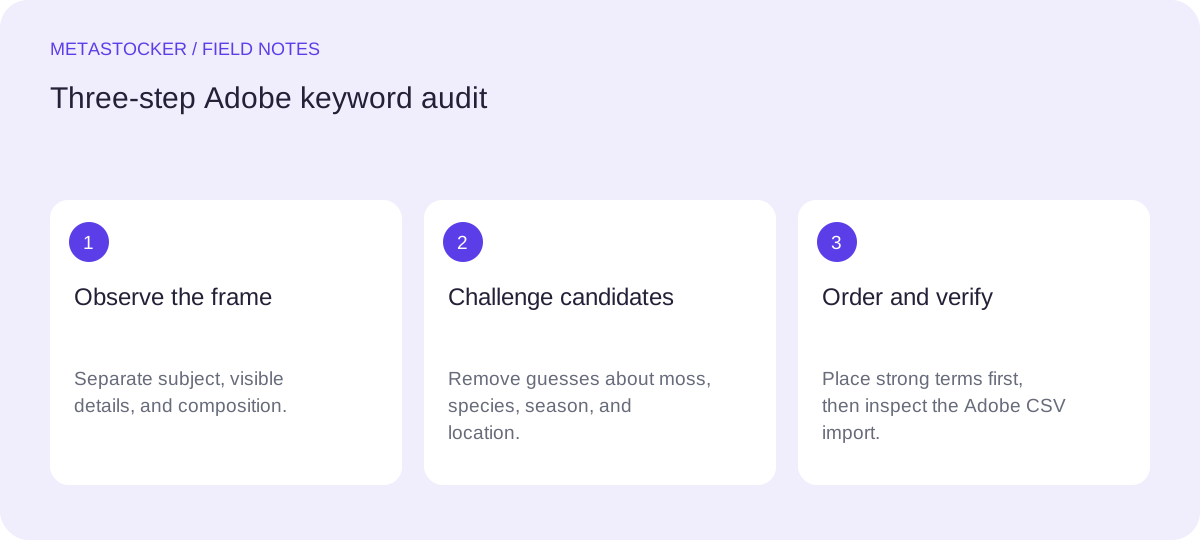
Start with a three-part visual audit
Before opening a generator, describe the file in three passes. First identify the primary subject: what occupies the frame and deserves the clearest wording. Second record subject details such as dew drops, veins, edges, texture, color, and visible condition. Third describe composition: macro or close-up view, shallow depth of field, selective focus, negative space, orientation, and background.
This separation prevents a common keyword mistake: treating every visible green shape as a separate subject. A background blur may be moss, soil, another leaf, or an unidentifiable plant. If the image does not prove which one it is, use a safe visual description such as “green textured background” rather than a guessed species or material.
- Subject: leaf
- Details: dew drops, veins, wet surface, green color
- Composition: macro, close-up, selective focus, blurred background
Generate candidates without copying competitors
Use a local generator to expand your own observation, not to imitate another contributor’s keyword list. MetaStocker is a static web app with local vision and thinking models that run in the visitor’s browser through WebGPU workers. In local mode, inference stays on the device; the first model download needs internet. The default local model is Gemma 4 E2B, and other listed choices include Gemma 4 E4B and Qwen3.5 2B.
Load one model first and give the batch description only facts that apply to the files. For a mixed batch, do not write a blanket instruction such as “beautiful nature images.” Extra tags can be added at selected positions, but each generated row still needs its own relevance review. Automatic tag counts are a formatting check, not evidence that the suggestions are accurate.
- Describe what is visible, not the intended mood or imagined context.
- Use one local thread initially; test more only after checking memory and behavior.
- Treat generated keywords as candidates, never as final metadata.
Worked example: audit a dew-covered leaf
Example: suppose the frame shows one green leaf covered in round water droplets. The leaf veins are visible, the center is sharp, and the background is a soft green blur. A first candidate set might contain “leaf, dew, water droplets, macro, close up, plant, green, texture, veins, wet, nature, selective focus, shallow depth of field.”
Now inspect each term. “Leaf” and “water droplets” are directly visible. “Veins,” “texture,” “macro,” and “selective focus” describe observable structure or composition. “Shallow depth of field” is appropriate only if the blur is caused by the focus plane rather than movement or image processing; if uncertain, omit it. “Moss” should not be added merely because the background looks mossy. If a botanical species cannot be verified from the image or your records, do not name one. “Fresh,” “healthy,” or “spring” may be an interpretation rather than a visible fact.
A refined first group could be: “leaf, dew, water droplets, macro, close up, green, veins, wet, texture, plant, selective focus, blurred background, nature.” This is not a claim that the list is complete. It is a defensible starting point that leaves room for platform-specific review.
- Keep terms that describe visible subject, detail, or composition.
- Remove guesses about species, season, location, or biological condition.
- Do not use moss unless the image clearly supports that identification.
Filename: dew-leaf-01.jpg
Title: Dew-covered green leaf in macro close-up
Candidate keywords: leaf, dew, water droplets, macro, close up, green, veins, wet, texture, plant, selective focus, blurred background, nature
Removed after review: moss, fern, spring, healthy, forest floor
Order the strongest Adobe terms first
Adobe’s guidance emphasizes relevant descriptive metadata and gives special attention to the first ten keywords. Put the clearest subject and defining details at the beginning rather than hiding them behind broad words such as “nature” or “background.” A practical order for this example is subject, distinctive detail, view, structure, then context: leaf, dew, water droplets, macro, close up, veins, wet, green, texture, selective focus.
The general Adobe keyword guide permits up to 49 keywords. Use a conservative maximum of 49 and check the current contributor interface before uploading, because related CSV documentation can differ. More terms are not automatically better: repeated, vague, or unsupported words increase review work and can make the record less precise. Metadata must match the language set for the contributor account, so prepare the final wording in that language even if your internal notes are in another language.
- Use the first ten positions for the strongest, most specific terms.
- Prefer one accurate phrase over several weak variations.
- Check current Adobe limits and contributor requirements before export.
Review local-AI and CSV boundaries
MetaStocker’s local workflow lets you edit generated results and export Adobe CSV rows, but the exporter does not upload or submit them, guarantee acceptance, or embed metadata into the original file. If you use CSV, upload the assets to Adobe first, then import the CSV. The filename, including extension and case, must match the uploaded asset. Inspect the resulting metadata in the contributor portal and correct any row that changed unexpectedly.
If a model is loaded, unloading it can retain browser cache files while removing it from active memory; cache is not the same as loaded model memory and browser storage can be evicted. This distinction matters when a later run behaves differently. The local app has no automatic cloud fallback. An optional personal OpenAI API mode is separate and sends previews or context to OpenAI using your own key; do not expose that key in public client-side code.
- Export only rows you have reviewed and consider ready.
- Check filenames exactly, including extension and capitalization.
- Confirm current Adobe portal rules because policies and screens can change.
Keep the audit repeatable
Save a short observation note beside the image or in your working sheet: confirmed subject, visible details, uncertain interpretations, and excluded guesses. This makes later edits faster and helps you explain why a tempting term was rejected. For a series of similar leaf images, reuse the audit categories, not a fixed keyword block. Each frame may differ in focus, visible droplets, background, or identifiable structure.
Finally, distinguish marketplace metadata from website SEO. Adobe keywords help describe an asset inside Adobe Stock; they do not guarantee sales or improve Google indexing. If you publish a portfolio page, write accurate surrounding text and alt text for that page separately. Check the contributor portal for the current Adobe requirements before the final submission step.
- Record exclusions as carefully as accepted terms.
- Recheck each file in a visually similar batch.
- Treat platform search and Google website indexing as separate systems.
Before you continue
- Inspect the subject, its details, and its composition separately.
- Generate candidate keywords from your own factual description.
- Remove unsupported species, materials, locations, seasons, and interpretations.
- Put the strongest relevant terms in the first ten positions.
- Stay within the current Adobe limits and account language.
- Match CSV filenames exactly after uploading the assets.
- Inspect every imported row before submission.
Sources and editorial approach
Prepared with AI assistance. Worked examples are illustrative. Automated checks do not replace checking the requirements of your stock platform. How these guides are made.