 MetaStocker
Titles & keywords
How to Verify Alpha-Channel Claims in Stock Motion Graphics
A dark background in a motion-graphics preview does not prove that the video contains transparency. It may be a genuine alpha-channel export displayed over black, or it may be ordinary video with every pixel already composited onto a dark color. That distinction changes both the file’s practical use and the metadata you should write.
This guide uses one clearly labeled hypothetical example: a 12-second, 1920×1080 animation of a cyan neon ring with orange particles, intended as an overlay. The example has two files: neon_ring_alpha.mov, claimed to contain transparency, and neon_ring_dark.mp4, a preview showing the same animation over a dark background. These are example file names and production facts, not measured results or a real customer submission. No additional materials, location, ownership, or release information is assumed.
Start with the claim, not the thumbnail
Treat “alpha,” “transparent,” and “overlay” as claims to verify rather than interchangeable keywords. A dark rectangle around an object is visual evidence of a background, not evidence of transparency. Conversely, a preview may deliberately show dark gray so the edge of a transparent effect is easier to see.
Write down what is actually known about each file: filename, container or extension, stated purpose, and whether the source notes explicitly confirm an alpha channel. If the only evidence is a dark preview, keep the claim unconfirmed. Do not infer codec details, delivery rights, ownership, or a particular platform’s acceptance from the pixels alone.
- Separate observed appearance from technical claims.
- Record uncertainty before generating metadata.
- Do not call a composited background transparent.
Example observation: “neon_ring_dark.mp4 shows a cyan ring on a dark rectangle.” That supports “dark background,” not “alpha channel.”
Run a transparency check in an editor
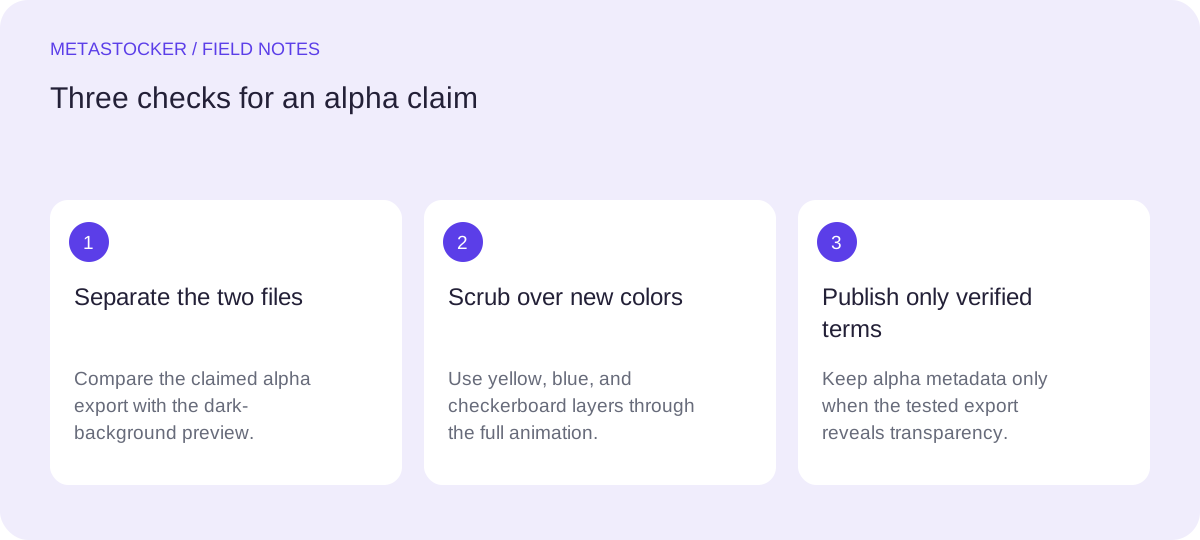
Open the claimed alpha export in a video editor or compositing application that can display transparency. Put a bright checkerboard, solid yellow, and solid blue layer beneath it. Scrub through the entire 12 seconds, including the first and last frames, particle bursts, glow edges, and any fade-out.
A real alpha result should reveal the replacement layer wherever the graphic is meant to be transparent. If the dark rectangle remains unchanged, the file is likely composited. A black or dark-looking glow can still be part of the artwork, so inspect whether it changes when the underlying layer changes. This check is a practical review step, not a platform acceptance test.
- Test several contrasting backgrounds.
- Scrub motion instead of checking only one frame.
- Inspect fine glows, particles, and fade transitions.
Example decision: if yellow appears around the ring and between particles, record “transparency observed in the checked export.” If the rectangle stays dark on all three backgrounds, record “dark background present; alpha not verified.”
Check the actual exported file
A preview image or player window can hide the distinction between transparency and a dark composition. Review the claimed export itself, not only a still thumbnail or a low-resolution web preview. If the file will be delivered as an overlay, preserve the original file for comparison and note which version you tested.
Do not promise that a filename containing “alpha” proves anything. Do not claim that an editor test guarantees approval by Adobe Stock, Shutterstock, Envato, or another marketplace. Their current upload and content requirements still need to be checked in the contributor portal, especially when the file type or metadata fields differ.
- Verify the file named in the listing or submission record.
- Keep the tested export distinct from the dark-background preview.
- Treat marketplace requirements as a separate review.
Write metadata that matches the evidence
If transparency is confirmed, describe the useful object and function accurately: “Cyan neon ring with orange particles, transparent motion graphics overlay.” If transparency is not confirmed, remove “alpha,” “transparent,” and “overlay” unless the work is genuinely offered for that use. A safer description might be “Cyan neon ring with orange particles on a dark background.”
For a platform requiring English metadata, use English even when this guide is read in another language. Keep the description as a phrase or sentence rather than a list of keywords. Select terms that describe this individual video, and avoid repeating the same concept through near-duplicates. Platform limits and language settings can change, so check the current contributor instructions.
- Put the verified visual subject before production claims.
- Use “dark background” when that is what the file shows.
- Do not use alpha-related terms as speculative search bait.
Example confirmed title: “Cyan neon ring with orange particles, transparent overlay”
Example unconfirmed title: “Cyan neon ring with orange particles on dark background”
Example relevant keywords: neon ring, particles, glow, cyan, orange, motion graphics, overlay, transparent, alpha channel, animation
Use local assistance without outsourcing judgment
MetaStocker can generate editable metadata locally in the visitor’s browser using its local vision and thinking models. Its video output is based on sampled previews, so it cannot replace the full-motion transparency check. Give the batch description only facts that apply to every file; do not tell a mixed batch that all clips have alpha.
A practical sequence is to load the two example files, describe the known distinction in the batch context, review each generated row, and remove any unsupported alpha claim. The app validates a requested tag count, but that does not prove that the tags are accurate. Export only rows you have reviewed. The exporter does not upload or submit files, guarantee acceptance, or embed metadata into the original videos.
- Use the generator for drafts, not technical certification.
- Review each file separately when their backgrounds differ.
- Keep final responsibility with the contributor.
Example batch context: “Two related motion clips: one claimed transparent export and one dark-background preview. Do not assume both have alpha.”
Make the final record auditable
Before publishing, keep a simple note linking each metadata row to the exact file reviewed. For the example, the record might say that neon_ring_alpha.mov showed replacement backgrounds during the full scrub, while neon_ring_dark.mp4 retained its dark rectangle. This makes later corrections easier if a preview, export, or filename changes.
If the test is inconclusive, say so and leave the technical claim out. Accurate, narrower metadata is more useful than a confident label unsupported by the file. Search visibility is not guaranteed by adding “alpha channel,” and marketplace search is separate from Google website indexing.
- Match every row to an exact filename.
- Record the test outcome and remaining uncertainty.
- Recheck current marketplace rules before upload.
Before you continue
- Identify whether the evidence is a dark preview or a claimed alpha export.
- Test the actual file over contrasting backgrounds throughout the motion.
- Remove transparency claims when the dark rectangle remains.
- Write English metadata when the target platform requires it.
- Review generated metadata per file before exporting.
- Check the current contributor portal and retain an auditable note.
Sources and editorial approach
Prepared with AI assistance. Worked examples are illustrative. Automated checks do not replace checking the requirements of your stock platform. How these guides are made.