 MetaStocker
Local AI
How to Download and Reuse a Local AI Model in Your Browser
A local browser model can generate image metadata on your own device, but downloading it is a small setup process rather than a single button to forget. You need a compatible browser and graphics environment, a stable connection for the first download, and enough patience to let the download and initial load finish. This guide uses MetaStocker as a concrete example and explains what “local” does and does not mean: inference runs in the browser, while the model files may be stored by the browser and later evicted.
1. Check the browser and device first
Local execution depends on WebGPU, a secure browser context, a compatible browser, and suitable GPU and driver support. A browser can expose WebGPU and still lack enough memory for a particular model. Before starting, update the browser if appropriate, close unusually demanding tabs, and confirm that the site loads normally over a secure connection.
Do not treat browser compatibility as a guarantee that every model will load. Start with the smallest practical model and one local worker. This reduces the amount of memory you need while you learn how the device behaves. MetaStocker offers Gemma 4 E2B, Gemma 4 E4B, and Qwen3.5 2B; Gemma E2B is the default local choice.
- Use a compatible, secure browser context.
- Begin with one local parallel thread.
- Keep the device connected to power for a long setup.
2. Download the model deliberately
In MetaStocker, use the explicit Download or Load control for the chosen local model. The first download needs internet access because the browser must obtain the model files. Keep the connection stable and leave the tab open until the operation finishes. Closing the tab mid-download can leave you needing to start the process again.
A download is not the same as inference. Downloading places model files under browser-managed storage; loading prepares a model for active use. If the interface reports progress or a loading state, wait for it to complete before adding a large batch of files.
- Choose a model before starting the download.
- Do not close the tab during download or loading.
- Avoid switching browser profiles while the operation is running.
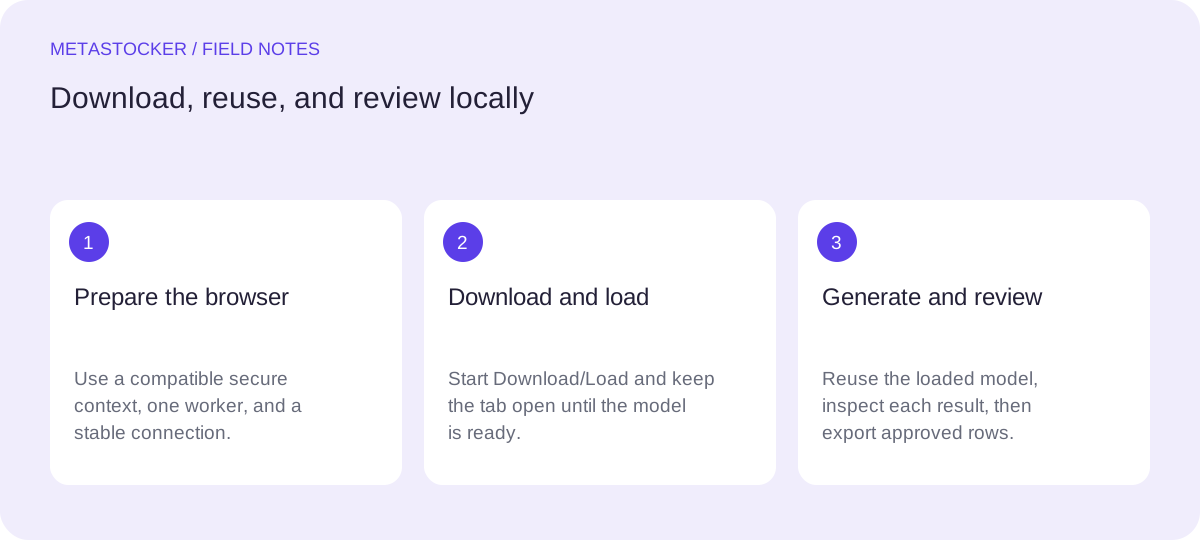
Example workflow: select Gemma 4 E2B, click Download/Load, keep the tab open on a stable connection, and wait until the model is reported ready before selecting images.
3. Reuse it without confusing memory and cache
After a model is loaded, you can use it for local metadata generation while it remains available to the page. Unloading the model from memory can free active resources while retaining browser-stored model files. Loading it later may be quicker than obtaining the files again, but that is not a promise of a fixed reload time.
Active model memory and browser cache are different things. The browser may evict stored files according to its own storage behavior. A cached model can therefore disappear even if you did not manually delete it. Do not promise yourself permanent storage or guaranteed offline access; a later load may require internet again.
- Unload from memory when you need to release active resources.
- Treat retained files as browser-managed storage, not an archive.
- Expect browser, profile, or origin changes to isolate stored data.
4. Keep the browser context consistent
Browser storage is commonly separated by origin and profile. Reopening the same site in another profile, private window, or different origin may not expose the model files you downloaded earlier. This is a practical reason to record which browser profile and site address you used.
Cache eviction can also make two sessions behave differently on the same device. If the model is missing, check that you are using the same profile and site first, then use the explicit Download/Load control again. Do not assume that copying a browser cache folder is a supported backup method.
- Use the same browser profile for later reuse.
- Use the same site origin where the model was downloaded.
- Do not describe browser cache as a permanent model library.
5. Test a small, factual batch
Once the model is ready, test it on a few representative files before processing a large collection. In MetaStocker, local execution uses WebGPU workers in the browser and does not automatically fall back to a cloud model. If you increase local parallel threads, each thread can load its own model copy, so begin with one and test two only if the device remains stable.
Give the batch description only the context that applies to every file. For mixed content, shared wording can create irrelevant metadata. Review editable titles, descriptions, and tags file by file. A requested tag count can be validated as a count, but it does not prove that every tag is accurate.
- Start with a small representative sample.
- Use one worker before testing a second.
- Inspect metadata for factual and per-file relevance.
- For video, inspect the full motion; sampled previews are not enough.
Example decision: a batch contains ten studio photos of one ceramic mug and three outdoor clips. Use the mug description only for the ten photos, then process the clips separately so outdoor terms do not leak into product metadata.
6. Clean up and export responsibly
When the model is no longer needed, unload it from memory or use the option to delete browser model files if you want to remove the stored copy. Deleting files means a future local session may need another download. Keep your editable results separately if they matter; the app does not promise to preserve work after a tab closes.
MetaStocker can export formats for Adobe, Envato, Shutterstock, and Freepik, but the exporter does not upload or submit them and does not embed metadata into the originals. Match filenames carefully, inspect the exported rows, and check the current contributor portal because marketplace requirements can change. Local generation is not an acceptance or sales guarantee.
- Export only rows you have reviewed.
- Keep source files and approved metadata in your own storage.
- Check current marketplace requirements before upload.
- Delete stored model files only when you accept another download later.
Before you continue
- Use a compatible secure browser context and start with one worker.
- Choose the model and explicitly begin Download/Load.
- Keep the tab open and the connection stable until loading finishes.
- Reuse the same browser profile and site origin.
- Remember that browser cache may be evicted and is not guaranteed offline storage.
- Test a small batch, review every result, and inspect full video motion.
- Export reviewed rows and verify current marketplace requirements yourself.
Sources and editorial approach
Prepared with AI assistance. Worked examples are illustrative. Automated checks do not replace checking the requirements of your stock platform. How these guides are made.