 MetaStocker
Contributor workflow
Review Stock Metadata with a Contact Sheet Before Batch Generation
A batch description can save time when several stock images share the same subject, setting, and visual treatment. It can also spread one mistaken assumption across every file. A contact sheet gives you a fast visual checkpoint before shared context reaches the generator. The goal is not to make every row identical; it is to identify what belongs together, what needs its own description, and what must be removed from the common prompt.
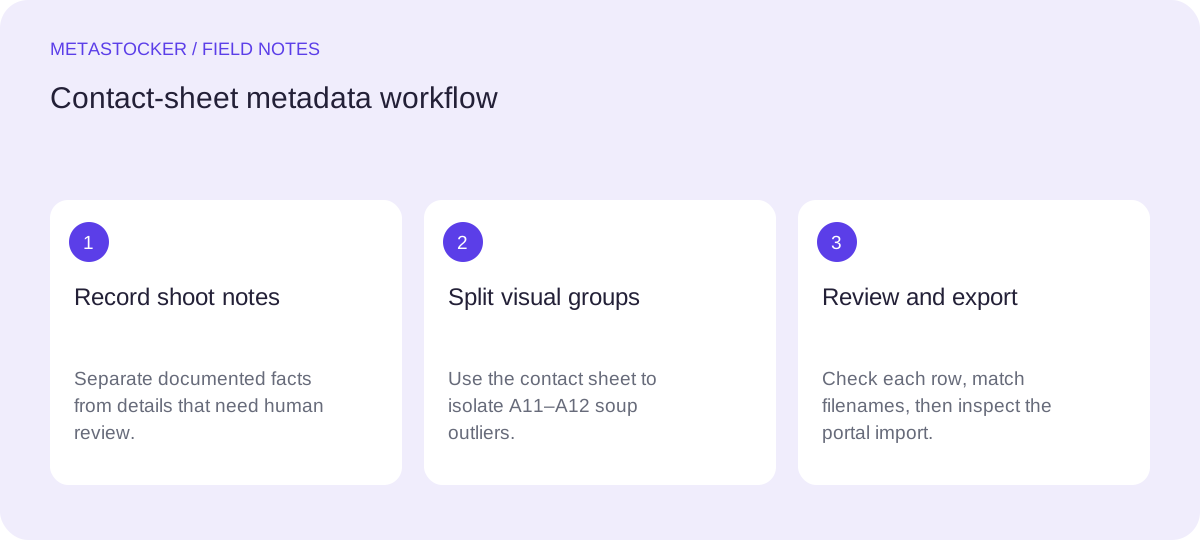
Start with documented facts
Before reviewing the images, write down the shoot notes that are safe to use. In the worked example below, the photographer’s notes say that the set contains 12 overhead food photographs: 10 show chickpea salad in a white ceramic bowl, while 2 show tomato soup in a blue ceramic bowl. The notes also state that beige linen and daylight appear throughout, and that no brand is visible.
These notes are the source for the ingredients, bowl colors, setting, and branding statement. Do not add details merely because they appear plausible in pixels. A contact sheet helps compare subjects, but it does not prove ownership, location, date, identity, species, ingredients, or materials.
- Separate shoot-note facts from visual observations.
- Mark uncertain details for human review instead of converting them into keywords.
- Keep the target marketplace’s metadata language in mind; a Russian article does not require Russian metadata.
Build the contact sheet review
Create a simple visual grid containing every file in the batch, with the filename printed beneath each thumbnail. The sheet is a review aid, not a marketplace upload format. Arrange the files in a stable order so that you can refer to positions such as “row 2, column 3” and then confirm the exact filename.
For the example, label the grid A01 through A12 only as temporary review labels, while retaining the original filenames. Scan first for subject changes, then for props, colors, orientation, and anything that affects the description. The purpose is to find boundaries inside the batch before you write shared context.
- Check that every intended file appears once.
- Compare the thumbnail with the filename, not only with its position.
- Open the original when a thumbnail is too small to distinguish the subject.
Worked example: isolate the outliers
Example, not a measured result or real customer case: the contact sheet shows that A01–A10 are chickpea salad images in white bowls, while A11 and A12 show tomato soup in blue bowls. Beige linen and daylight are common across all 12 according to the shoot notes. The two soup files are therefore outliers for the main subject and bowl color, even though their composition is similar.
Create two working groups: a 10-file salad group and a 2-file soup group. Do not use “chickpea salad” or “white bowl” as the shared description for all 12. The cost of splitting the group is two short reviews; the benefit is avoiding a subject error in the soup rows.
- Group A01–A10: chickpea salad, white ceramic bowl.
- Group A11–A12: tomato soup, blue ceramic bowl.
- Common context: overhead food photograph, beige linen, daylight, no visible brand, only where applicable.
Common context for A01–A10:
Overhead chickpea salad in a white ceramic bowl on beige linen, photographed in daylight; no brand is visible.

Common context for A11–A12:
Overhead tomato soup in a blue ceramic bowl on beige linen, photographed in daylight; no brand is visible.
Use shared context narrowly
If you use MetaStocker’s local generator, its batch description is context sent with generation. Treat it as a controlled prefix, not a blanket keyword list. Enter only facts shared by the selected group, then inspect each generated row for file-specific relevance.
The verified local mode runs in the visitor’s browser through WebGPU workers. The first model download needs internet, and browser model cache is different from the model currently loaded in memory. Local execution does not mean that an unsupported browser or insufficient device memory will work reliably. Begin with one local parallel thread and test a second only if the device handles it comfortably.
- Generate the salad and soup groups separately.
- Keep group context factual and short.
- Remember that exact tag-count validation is not proof that tags are accurate.
Review rows before CSV export
Read the editable result for every file. Remove terms that describe another image, add only supported file-specific details, and reject guesses about people, places, ownership, or sensitive personal attributes. For the example, a soup row should not retain “chickpea salad” simply because it was processed near the salad files.
For Adobe Stock, the current guidance emphasizes accurate titles, the most important terms early in the first ten keywords, and a conservative maximum of 49 keywords. The CSV requirements map filenames to titles and keywords, with optional fields, but requirements can change, so check the current upload screen. A CSV does not guarantee acceptance.
- Confirm the title describes the actual file.
- Check the first ten keywords for the strongest accurate concepts.
- Export only rows you have reviewed and consider ready.
Import carefully and keep an audit trail
If you later use an Adobe CSV workflow, upload the assets before importing the CSV. Filenames, including extension and case, must match exactly. After import, inspect the resulting metadata in the contributor portal. Treat the portal as the final place to verify what was applied.
Save the reviewed contact sheet, group notes, and exported CSV together under a batch identifier. This makes it easier to explain why A11 and A12 received different context. Marketplace policies change, so check the relevant contributor portal and current item requirements before submission.
- Match every CSV filename to an uploaded asset.
- Inspect imported metadata instead of assuming the file was accepted as intended.
- Do not confuse website indexing with internal marketplace search.
Before you continue
- Record photographer-supplied facts before writing shared context.
- Place every file on a labeled contact sheet.
- Identify subject and prop outliers before generation.
- Split mixed groups and write context for each group.
- Review every editable row for factual relevance.
- Check current marketplace limits and portal instructions.
- Match filenames exactly and inspect imported metadata.
Sources and editorial approach
Prepared with AI assistance. Worked examples are illustrative. Automated checks do not replace checking the requirements of your stock platform. How these guides are made.