 MetaStocker
Contributor workflow
How to Repair Rejected Stock Keywords Without Rewriting Everything
A keyword rejection does not automatically mean the whole caption is unusable. The safest repair is narrow: identify the exact review reason, change only the affected terms, and keep a record of what was preserved. This guide uses one hypothetical example throughout: a studio photograph of a ceramic mug beside a notebook and a pencil on a pale desk. The photographer’s shoot notes state only that the image was made in a studio and that the visible objects are a ceramic mug, a paper notebook, and a graphite pencil. They do not state the brand, owner, country, workplace, or what is inside the mug. Those facts are therefore excluded from the metadata.
1. Start with the actual rejection reason
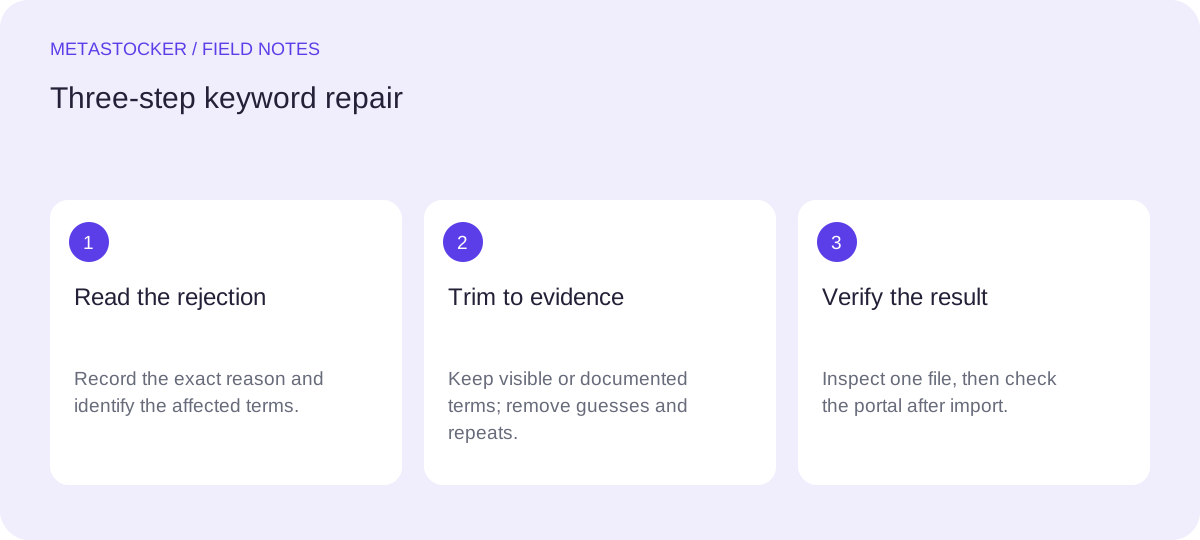
Copy the platform’s review message into your working notes before editing. “Keywords are irrelevant,” “keywords are repetitive,” and “metadata contains restricted or unverified terms” require different repairs. Do not respond to a keyword-specific notice by replacing the title, category, or every useful keyword.
First separate evidence from interpretation. Evidence includes the visible objects and the shoot notes. Interpretation includes assumptions such as coffee, a home office, a business owner, or a particular brand. Remove interpretations unless they are documented or unmistakably visible and allowed by the marketplace. Check the contributor portal for the current wording and requirements, because marketplace policies can change.
- Record the exact reason and the affected file name.
- Mark each term as visible, supplied by shoot notes, or unsupported.
- Keep the original title and keyword list in a separate copy.
2. Worked example: narrow the repair
Suppose the original metadata for studio_mug_014.jpg is rejected for irrelevant or repeated keywords. The original list contains “ceramic mug, mug, coffee, notebook, pencil, desk, workspace, office, productivity, business, blue, blue mug, brand, home office.” The image visibly shows a pale desk, while the shoot notes support ceramic mug, paper notebook, graphite pencil, and studio setting. They do not support coffee, office, productivity, business, home office, or brand.
The repair keeps the supported concepts, removes unsupported or repetitive ones, and adds no invented story. “Blue mug” is retained only if the mug is visibly blue; if the color is not clear, remove it. The result is more defensible because every term has a visible or documented basis.
- Original title: Ceramic mug with notebook and pencil on pale desk
- Repaired title: Ceramic mug with notebook and pencil on pale desk
- Reasoning: the title describes the visible arrangement without claiming a drink, workplace, owner, or brand.
Original keywords:
ceramic mug, mug, coffee, notebook, pencil, desk, workspace, office, productivity, business, blue, blue mug, brand, home office

Repaired keywords:
ceramic mug, notebook, graphite pencil, pale desk, studio, stationery, tabletop, still life
3. Preserve metadata that still works
A rejection is not a signal to start from a blank page. Keep the original title if it is accurate and within the platform’s current limit. Keep relevant keywords that describe the file, but remove duplicates, near-duplicates, and terms that merely express a possible use. Adobe’s guidance permits up to 49 keywords and emphasizes the first ten, so the repaired list should put the strongest descriptions first rather than filling every available slot.
For the example, “ceramic mug,” “notebook,” “graphite pencil,” and “pale desk” are stronger opening terms than “writing” or “stationery.” “Workspace” might be a reasonable search concept in some images, but here it implies a setting not supplied by the notes, so it is left out. A shorter accurate list is preferable to a longer speculative one.
- Preserve accurate wording and ordering where possible.
- Remove repetition instead of replacing every synonym automatically.
- Treat the first ten terms as a priority set, not as a place for filler.
4. Repair one file before repairing a batch
Apply the logic to one rejected file first. Compare the revised title and keywords with the image and notes, then inspect the portal’s metadata preview. If several files show similar objects, do not copy the same list blindly: a mixed batch may differ in color, arrangement, or visible context. A batch description in a local generator is context for generation, not proof that every term belongs on every file.
If you use MetaStocker, local mode runs the selected model in your browser through WebGPU workers; inference is not performed on an AI server. Loading a model into memory is different from keeping downloaded model files in browser cache. The app can generate editable metadata, but it does not decide whether a keyword is factually safe. Review each result and export only ready rows.
- Test the repaired logic on one image.
- Compare every proposed term with that file, not just the batch.
- Remember that a requested tag count validates quantity, not accuracy.
5. Export carefully and verify after import
If the repaired metadata is going to Adobe Stock by CSV, upload the assets first and make sure the filenames, including extension and case, match the CSV. Use a conservative maximum of 49 keywords and check the current upload screen, since platform requirements may differ by workflow. A CSV is a transport format, not an acceptance guarantee.
After importing, inspect the resulting metadata in the contributor portal. Confirm that the repaired file received the intended title and keywords, and that no stale row or filename mismatch put metadata on the wrong asset. Keep the original and repaired versions in your own working record so a later review can be traced.
- Match exact filenames, including extensions and capitalization.
- Inspect the portal after import.
- Check the current contributor guidance before submission.
6. Distinguish marketplace repair from website SEO
These keywords serve internal stock marketplace metadata. They are not a direct recipe for Google indexing. For a personal website, descriptive surrounding text and appropriate alt text are separate considerations, and Google does not promise rankings, traffic, or revenue from a particular word list. Do not add website SEO phrases to the marketplace file merely because they sound commercially attractive.
The practical stopping point is evidence: every retained term should be visible or supported by the shoot notes, and every removed term should have a clear reason. If the review reason is still unclear after reading the portal message, pause and check the platform’s current contributor documentation rather than guessing.
Before you continue
- Copy the exact rejection reason before editing.
- Keep the original metadata unchanged in a separate copy.
- Classify every term as visible, documented, or unsupported.
- Remove irrelevant, repeated, brand, identity, or invented-context terms.
- Put the strongest accurate terms first and stay within the current platform limit.
- Repair one file, inspect it, then apply the logic selectively to similar files.
- Verify filenames and imported metadata in the contributor portal.
- Export only rows you have reviewed; a CSV does not guarantee acceptance.
Sources and editorial approach
Prepared with AI assistance. Worked examples are illustrative. Automated checks do not replace checking the requirements of your stock platform. How these guides are made.