 MetaStocker
CSV & exports
Fix Stock Metadata CSV Filename Mismatches
A metadata CSV can contain excellent titles and keywords yet fail to attach them to the right stock files. The usual cause is a filename mismatch: the CSV says img_042.jpg while the uploaded asset is IMG_042.JPG, or two folders contain different images that share the same name. Treat the filename as an identity key, not as decoration. This guide shows how to reconcile names safely, preserve original files, and create a one-to-one mapping you can inspect before import.
The exact rules depend on the marketplace and content type. Adobe Stock requires the filename, including extension and case, to match the uploaded asset when importing a CSV. Upload the assets first, then import the CSV and inspect the resulting metadata in the contributor portal. Requirements can change, so check the current contributor upload screen before preparing a final file.
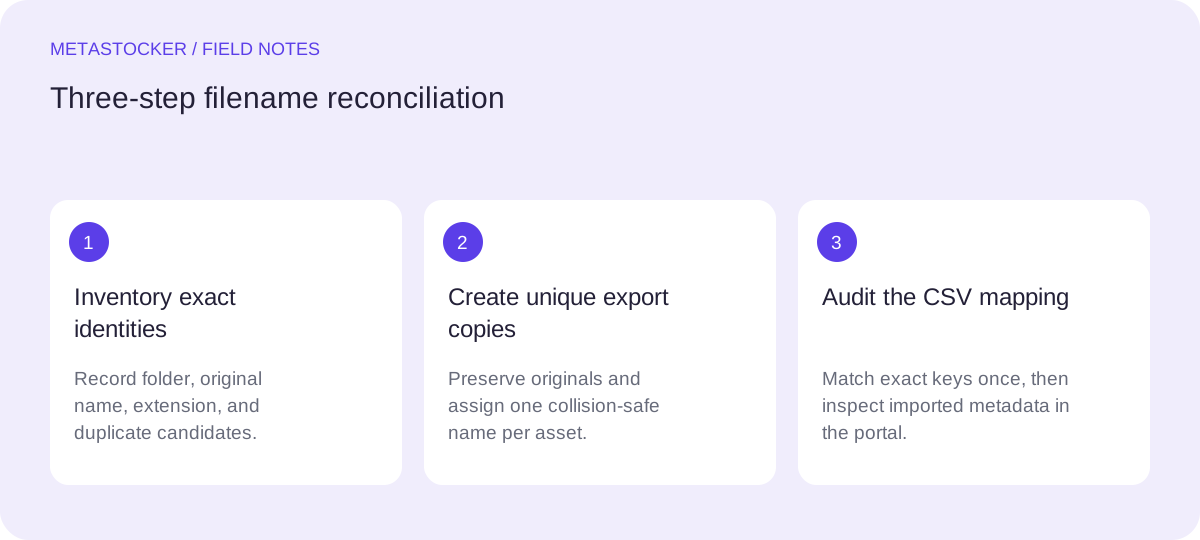
1. Separate the three names involved
Start by distinguishing the original filename, the upload filename, and the CSV filename. They may be identical, but they do not have to be if you intentionally create a controlled export copy. The important rule is that the CSV name must exactly identify the asset that the marketplace sees.
A filename comparison normally includes the full extension and letter case. IMG_042.JPG, img_042.jpg, and IMG_042.jpeg are different strings even if they refer to visually similar files. A basename comparison alone can hide a problem, so record both the basename and extension.
- Original: the untouched source file kept for safety.
- Export copy: the file prepared for a marketplace upload.
- CSV key: the exact filename written in the metadata row.
Original file: IMG_042.JPG
CSV key: img_042.jpg
Diagnosis: basename differs in case, extension differs in case and spelling.
2. Build an inventory before renaming
Make a small inventory of every asset you intend to upload. Include its folder, original filename, extension, and a stable internal note such as a sequence number. Do not rely on a folder name to distinguish files: marketplaces and CSV formats commonly use the filename field, not your local folder path.
If two folders contain IMG_042.JPG, they are two separate candidates with the same visible key. Decide which image is which by opening the files and recording a meaningful description. If available in your workflow, a checksum or file-specific internal ID can help you verify that a renamed copy still corresponds to the intended original.
- List every duplicate basename across all source folders.
- Open ambiguous files before assigning metadata.
- Keep the inventory outside the CSV so it remains an audit record.
3. Choose a collision-safe naming plan
The safest plan is usually to leave originals untouched and create uniquely named export copies. Add a controlled distinguishing token when duplicate names occur, such as a project code or sequence: coastal-lighthouse-042-a.jpg and coastal-lighthouse-042-b.jpg. Keep names readable and consistent, but do not put keywords into a filename as a substitute for accurate metadata.
If the marketplace expects an existing filename and you do not need to rename anything, preserve the exact spelling and extension in the CSV. If you do rename export copies, rename or copy the files first, then generate the CSV from the final export inventory. Never manually change only the CSV name while leaving the asset unchanged.
- Use one export filename per physical asset.
- Avoid spaces or punctuation only when your own workflow makes them risky; do not assume a universal naming rule.
- Record old-to-new names before exporting.
4. Worked example: two folders, one IMG_042
Example: folder A contains a daylight lighthouse image named IMG_042.JPG. Folder B contains a dusk lighthouse image with the same filename. A draft CSV has one row called img_042.jpg, so it cannot safely represent both files. The first row is ambiguous, and its case and extension also fail an exact-match check.
I would keep both originals unchanged and create two upload copies with unique names. I would then attach each title and keyword set to the matching export copy, not to the original basename. The decision favors traceability over short names: the suffix identifies the source set, while the visual descriptions distinguish daylight from dusk. Before import, I would compare the export directory and CSV keys as two sets and investigate any missing, extra, or repeated key.
- Daylight source becomes lighthouse-coast-day-042-a.JPG.
- Dusk source becomes lighthouse-coast-dusk-042-b.JPG.
- CSV rows use those exact names, including .JPG and case.
CSV sample
filename,title,keywords
lighthouse-coast-day-042-a.JPG,Daylight lighthouse on a rocky coast,"lighthouse, coast, daylight, rocks, navigation"
lighthouse-coast-dusk-042-b.JPG,Lighthouse by the coast at dusk,"lighthouse, coast, dusk, sea, architecture"
5. Reconcile the CSV before upload
Perform four checks: every intended export file appears once; every CSV filename matches one file exactly; no CSV key is repeated; and no row points to an old or missing extension. Sort both lists by exact filename to make visual comparison easier. Also check that titles and keywords belong to the correct image rather than merely to the correct name.
For Adobe Stock, upload the assets before importing the CSV, then inspect the metadata in the contributor portal. Keep the portal's current limits in view: the CSV documentation gives a 70-character title limit, while a conservative keyword maximum is 49. These limits do not make a filename valid, so validate identity separately.
- Match full filename strings, not basenames alone.
- Check duplicate rows and duplicate export files.
- Inspect imported fields before continuing with submission decisions.
6. Protect originals and correct failures
Do not embed new metadata into the original files as part of this repair. Keep the untouched originals, the renamed export copies, the inventory, and the final CSV in clearly separate locations. If an import attaches a row incorrectly, stop and correct the mapping rather than trying to compensate with more keywords.
A local generator such as MetaStocker can produce marketplace-specific CSV outputs, but its exporter does not upload files or embed metadata into originals. Review editable results and export only ready rows. If you use its local mode, the model runs in your browser after the required model download; that model memory is different from downloaded browser cache. The filename audit remains your responsibility.
- Archive the original-to-export mapping with the project.
- Regenerate the CSV after any export rename.
- Check the marketplace portal and current contributor policy before final import.
Before you continue
- Keep every original file unchanged.
- Inventory folders, filenames, extensions, and duplicate names.
- Create one unique export filename for each asset.
- Use exact case and extension in every CSV row.
- Verify that each CSV key maps to one and only one uploaded file.
- Inspect imported metadata in the marketplace portal.
- Check current marketplace CSV and contributor requirements before finalizing.
Sources and editorial approach
Prepared with AI assistance. Worked examples are illustrative. Automated checks do not replace checking the requirements of your stock platform. How these guides are made.