 MetaStocker
CSV & exports
How to Review Stock Metadata Safely in a Spreadsheet
A metadata spreadsheet is a review surface, not a place to trust every cell automatically. Generated titles and keywords can contain commas, quotation marks, leading symbols, or text that a spreadsheet interprets as a formula. A filename can also be changed by trimming spaces, removing an extension, or converting a value into a date. These small changes can break a later CSV import or attach metadata to the wrong asset.
Use a copy of the exported file and keep the original export unchanged. Your goal is to confirm four things for every row: the filename identifies the intended asset, the title describes it accurately, the keywords are relevant, and the reviewer note records any remaining action. This workflow is useful whether the rows came from MetaStocker or another generator.
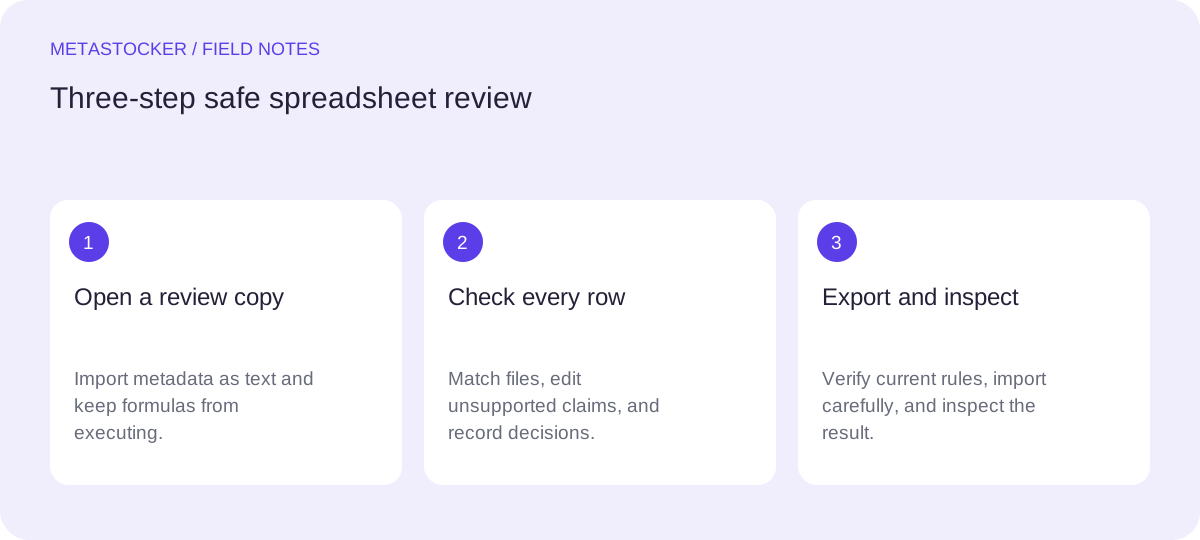
Set up a safe review copy
Make a working copy before opening the export in a spreadsheet program. Give it a clear name such as metadata-review-2026-09-18-copy.csv, and keep the untouched export in a separate folder. If the spreadsheet program offers import settings, treat every column as text first, especially filename, title, keywords, and reviewer note.
Avoid automatic type detection where possible. It can turn filenames into dates, remove leading zeroes, or convert long strings. Do not enable formula execution for untrusted imported values. A cell beginning with characters such as =, +, -, or @ may be interpreted as a formula rather than ordinary metadata. If such text is legitimate, preserve it as text and flag it for manual review.
- Review a copy, never the original export.
- Import filename, title, keywords, and notes as text.
- Keep formulas disabled for imported content.
Working files:
metadata-export-original.csv
metadata-review-2026-09-18-copy.csv
metadata-review-2026-09-18-final.csv
Confirm the row-to-file match
Start with the filename column, including the extension and letter case. Compare each value with the actual asset name in your upload folder. Do not rely on a shortened display name. A title can be excellent and still be attached to the wrong image if one filename was altered.
For a video, inspect the complete motion rather than only the sampled preview used during generation. Check the opening, middle, and ending for details that affect the description. If a filename is missing, duplicated, or inconsistent, stop that row instead of guessing which asset it represents.
- Check the full filename and extension.
- Look for duplicate or missing filenames.
- Inspect full video motion when applicable.
Evaluate titles and keywords
Read the title as a useful description, not as a keyword pile. Remove claims that cannot be supported by the asset. Do not infer a person’s identity, ownership, exact location, release status, or species from pixels alone. For mixed batches, reject blanket terms that apply only to some files.
For Adobe Stock, the current dossier describes a 70-character CSV title limit and recommends the most important terms early; it also gives a conservative maximum of 49 keywords. Platform rules differ, so check the current contributor portal before export or upload. Relevant terms should be tailored to each file, not repeated simply to fill a quota.
- Put the central subject and action first.
- Delete irrelevant, repeated, or speculative terms.
- Record uncertain cases instead of inventing facts.
Use reviewer notes as decisions
A reviewer note should explain what must happen next, not merely say “check.” Use short, consistent labels such as “remove inferred species,” “verify filename,” or “ready after title edit.” This makes the sheet useful when you return to it later or hand it to another reviewer.
Keep notes separate from title and keyword values. Never hide a concern by silently changing a generated row. If you edit a title, keywords, or filename, make the change visible through the note or a simple versioned working file. The final file should contain only values intended for the destination platform, while your review copy can retain the decision trail.
- State the issue and the required action.
- Keep notes out of export metadata fields.
- Use versioned copies for meaningful revisions.
Worked example: one row from review to export
Example, not a measured result: suppose the asset is named city-bike-014.mp4. Its sampled preview suggests a cyclist crossing a bridge, but the full video shows the cyclist only briefly and does not establish the city. The generated row says “Cyclist in London crossing a bridge” and includes “London, commuter, urban lifestyle, athlete.”
The reviewer should preserve the filename, remove the unsupported city reference, and decide whether “athlete” is warranted. A safer title is “Cyclist crossing a bridge in an urban setting.” Keywords could include “cyclist, bicycle, bridge, urban, commute, transport,” only if each term fits the complete clip. The note might say “Removed unverified city; inspect full motion; ready after title review.” Before export, compare the final filename with the asset again and check the destination platform’s current CSV requirements.
filename: city-bike-014.mp4
title: Cyclist crossing a bridge in an urban setting
keywords: cyclist, bicycle, bridge, urban, commute, transport
reviewer note: Removed unverified city; inspect full motion; ready after title review
Final validation before handoff
Filter for blank filenames, duplicate filenames, unusually short titles, and notes that still contain unresolved actions. Check separators and quotation handling in the CSV without re-saving it through a tool that may rewrite values unexpectedly. If the target is Adobe Stock, assets must be uploaded before the CSV is imported, and the filenames must match exactly; inspect the resulting metadata in the contributor portal.
Export only rows marked ready. A valid-looking spreadsheet is not proof that a platform will accept the file, and the exporter does not submit it for you. Recheck current portal rules because limits and field requirements can change.
- Resolve every non-ready note.
- Verify exact names before platform import.
- Inspect metadata after import.
Before you continue
- Work from a copy and preserve the untouched export.
- Treat all imported metadata as text.
- Keep formulas from executing on untrusted values.
- Match filenames, extensions, and case to the real assets.
- Review titles and keywords for relevance and unsupported claims.
- Check current platform requirements before export.
- Export only rows that are explicitly ready.
- Inspect the metadata in the contributor portal after import.
Sources and editorial approach
Prepared with AI assistance. Worked examples are illustrative. Automated checks do not replace checking the requirements of your stock platform. How these guides are made.