 MetaStocker
Titles & keywords
How to Describe Copy Space in Stock Photo Keywords
A stock image with a potted plant at the right edge and an uncluttered wall on the left may offer copy space, but the description must say what is actually visible. Copy space is not simply any empty-looking background. It is a usable area where a designer could place a headline, logo or other text without covering an important subject or fighting distracting detail. This guide shows how to inspect the composition, decide whether the left side is genuinely useful, and turn that decision into precise marketplace metadata. The example is hypothetical and is not a measured result or a real customer submission.
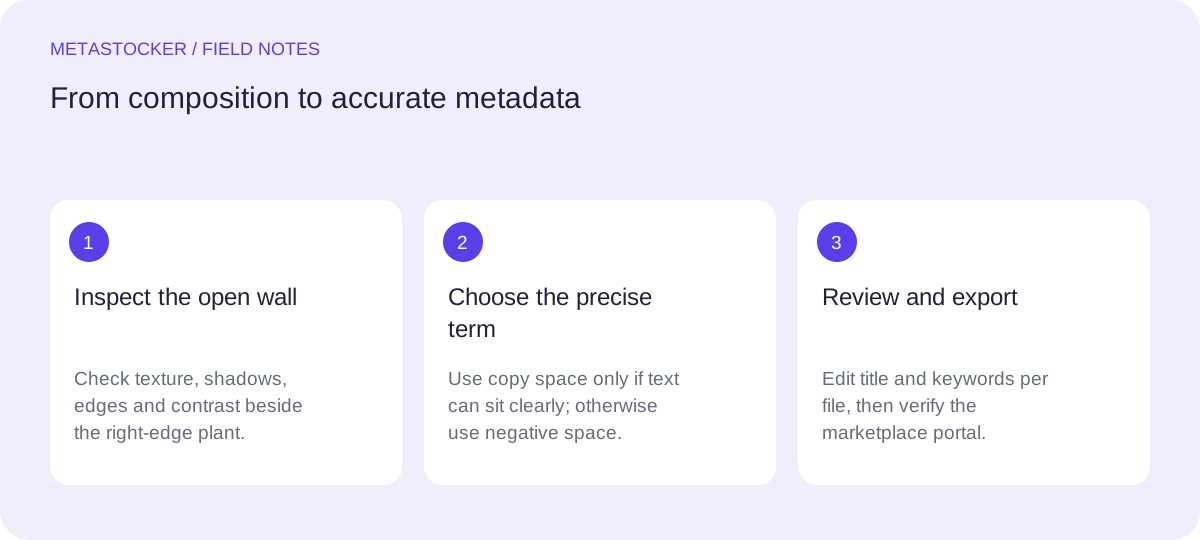
Start with the composition, not the keyword
Describe the visual relationship first: the plant is positioned on the right, while the left side contains a relatively open wall. Position and subject are concrete facts. They are safer than vague claims such as “perfect design” or “ideal advertising image.”
Before writing metadata, check whether the wall is truly open. Look for furniture edges, sockets, frames, wrinkles, strong shadows, stains, texture, gradients and bright patches. A background can be uncluttered while still being difficult to use for text.
- Record the subject and its position.
- Inspect the proposed text area at normal display size.
- Separate visible facts from possible buyer uses.
When negative space is usable copy space
Negative space becomes practical copy space when it gives a designer enough visually calm area for text and keeps that text legible. The space does not need to be perfectly white. A pale, even wall can work if its contrast, lighting and texture do not compete with ordinary typography.
Use careful wording when the area is only partly suitable. “Copy space on left” is stronger than “blank background” when the left area can reasonably carry a short message. If the wall is narrow, unevenly lit or interrupted, describe it as negative space or an uncluttered background instead of promising broad layout freedom.
- Use “copy space” when placement is visibly practical, not merely possible.
- Add a side or direction when it matters: left, right, top or center.
- Mention wall, interior or background only when the image supports it.
What does not qualify as copy space
A background does not automatically qualify because it has no obvious object in it. Heavy texture, visible damage, a strong cast shadow, a changing exposure, a patterned surface or an edge that cuts through the intended text area can make the space unsuitable. Small empty margins around a subject are also not necessarily copy space.
Avoid inferring that the photograph is ready for a particular campaign. You can describe room for text without claiming that every headline, logo or layout will work. Likewise, do not infer a room’s location, plant species or ownership from pixels unless those facts are supplied separately.
- Do not use “blank” if texture or marks are prominent.
- Do not call a narrow gap “large copy space.”
- Do not turn a possible design use into a guarantee.
Worked example: the right-edge plant
Example: imagine a portrait-oriented photo of a small potted plant placed close to the right edge. The left two-thirds show a light gray wall with a soft tonal change and no furniture, frame or visible writing. The pot remains fully visible, and the plant does not extend into the likely text area.
The editorial decision is to describe the left side as copy space, but not to call the whole wall blank or claim that it suits every design. The metadata should lead with the central subject and composition, then add the practical layout attribute. If the tonal change were strong enough to reduce text contrast, “negative space” would be more accurate than “copy space.”
- Core facts: potted plant, indoor scene, right side, light wall.
- Useful composition term: copy space on left.
- Possible use: text placement, but only as a contextual description.
Title: Potted plant on right with copy space on left wall
Keywords: potted plant, houseplant, indoor plant, plant pot, right side, copy space, left side, negative space, light wall, minimalist interior, home decor, calm background, text space, composition
Build metadata in a marketplace-aware order
Put the most important concepts first, especially the subject and composition. A concise title should read like a description rather than a list of search terms. Keywords should remain relevant to this individual image; do not add “banner,” “office,” “real estate” or “wellness” unless the visible scene supports those ideas.
Different marketplaces apply different metadata rules. Adobe Stock’s guidance emphasizes relevant terms and gives attention to the first ten keywords, while its general guide permits up to 49 keywords. Shutterstock requires English descriptive metadata and relevant keywords, with its own limits and category requirements. Check the current contributor portal before exporting or submitting because policies can change.
- Prioritize subject, setting and composition.
- Keep copy-space terms near other defining concepts.
- Use English metadata when the target marketplace requires English, even if this article is read in another language.
Use a generator, then make the judgment yourself
MetaStocker can generate editable metadata locally in the visitor’s browser using supported local models, including Gemma 4 E2B as the default. Local inference stays on the device; loading a model into memory is different from retaining downloaded model files in the browser cache. A first model download needs internet, and browser storage can be removed by the browser.
Give the batch description only facts that apply to every file. For mixed images, write per-file corrections rather than applying “copy space” to the entire batch. Review each generated title and keyword list, remove unsupported assumptions, and export only rows that are ready. The exporter creates files for supported marketplace formats; it does not upload, submit, embed metadata into the originals or guarantee acceptance.
- Review whether the left area is genuinely usable before keeping the term.
- Check exact tag counts and then check accuracy separately.
- Inspect the contributor portal after any CSV import.
Before you continue
- Confirm the plant’s position and the direction of the open area.
- Inspect texture, shadows, edges and contrast in the proposed text zone.
- Use “copy space” only when text placement is visibly practical.
- Keep “negative space” for open but less reliably usable areas.
- Avoid unsupported claims about plant species, location, ownership or campaign suitability.
- Place the strongest subject and composition terms early.
- Review every generated result before exporting and check current marketplace rules.
Sources and editorial approach
Prepared with AI assistance. Worked examples are illustrative. Automated checks do not replace checking the requirements of your stock platform. How these guides are made.