 MetaStocker
Contributor workflow
Fix Unreadable Image, Video, and Illustrator Previews
A preview error does not always mean that the underlying asset is unusable. A MOV may play correctly in a desktop player but use a codec your browser cannot display. An Illustrator file may contain good vector artwork while lacking a PDF-compatible preview. A JPEG may open in one application and fail in another because its file structure is damaged. The safe response is to create a supported preview copy for inspection and metadata work, while keeping the original asset untouched. This guide shows how to diagnose each case, produce a reviewable preview, and avoid confusing a readable preview with a technically accepted stock file.
Separate the original from the preview
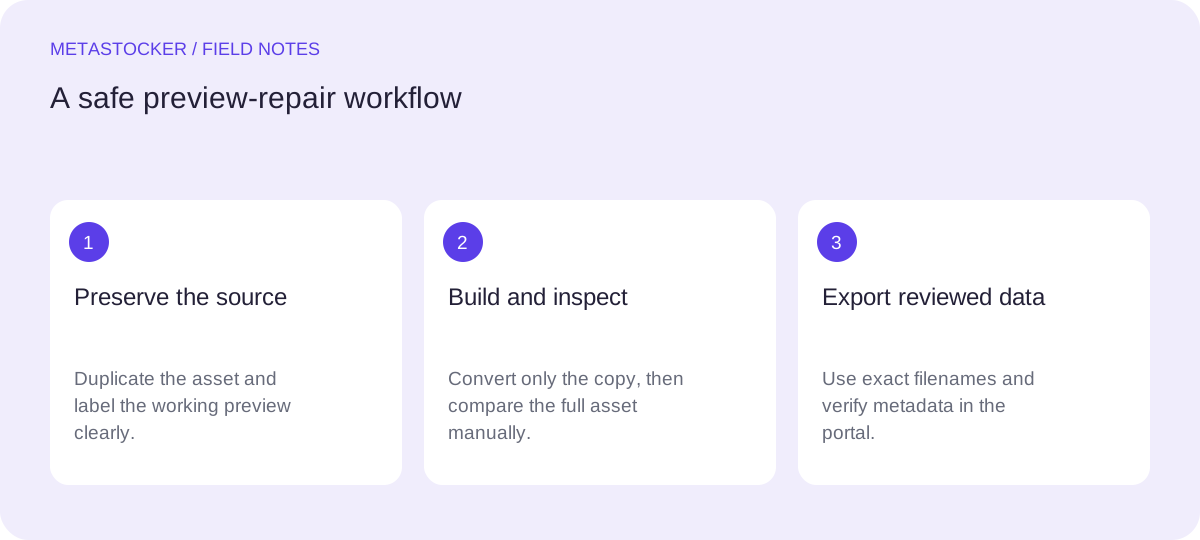
Create a working folder with separate locations for originals, preview copies, and final metadata. Keep the original filename, extension, and file bytes unchanged. Add a clear suffix such as _preview or _review to generated copies so that a preview cannot be mistaken for the submission asset.
A preview is an aid for viewing, metadata generation, and quality inspection. It is not automatically a replacement asset, a repair of the source file, or proof that a marketplace will accept the original. Check the current contributor requirements before uploading any converted file.
- Never overwrite the source .mov, .ai, or .jpg.
- Record which file produced each preview.
- Inspect the final asset separately from its preview.
Originals/
  city-night-07.mov
  poster-lines.ai
  ceramic-cup.jpg
Previews/
  city-night-07_preview.mp4
  poster-lines_preview.pdf
  ceramic-cup_preview.jpg
Diagnose the failure before converting
First try the file in a second capable desktop application. If the MOV plays there but not in the browser, suspect a browser codec or container compatibility issue rather than missing frames. If the AI opens in Illustrator but shows a blank thumbnail elsewhere, check whether PDF compatibility was enabled when it was saved. If the JPEG shows blocky corruption, partial rendering, or an error in several applications, treat it as potentially damaged rather than merely unsupported.
Do not infer that a video is technically clean because one sampled frame looks fine. A preview workflow is useful for locating obvious problems, but the complete motion, sound requirements where relevant, dimensions, and frame behavior still need human inspection.
- Compare at least two viewers when practical.
- Check the entire video, not only generated stills.
- Treat repeated JPEG errors as possible corruption.
Make a browser-friendly video preview
For a playable MOV that uses an unsupported browser codec, make a separate preview in a broadly supported web format using a trusted desktop video tool. Keep the same frame size and duration where practical, and choose settings that preserve enough detail for checking focus, artifacts, transitions, and framing. Do not replace the original MOV merely because the preview plays.
Open the converted copy in the target browser and scrub through the whole timeline. Compare several frames against the source player. If the preview drops frames, changes colors, loses transparency, or alters timing, it is unsuitable for judging that property. Keep notes about any limitation instead of assuming the conversion is neutral.
- Use a new filename and output folder.
- Check start, middle, end, and fast motion.
- Retain the original for any later submission decision.
Example decision: A file named city-night-07.mov plays in a desktop player but not in the browser. Create city-night-07_preview.mp4 for browser review, then compare the first traffic-light change, the midpoint pan, and the final frame with the MOV. If timing differs, use the original in the technical review and treat the MP4 only as a convenience preview.
Create an Illustrator preview safely
An AI file may need a readable embedded preview for another application to display it. If you have the source application, open the original and save a copy with PDF-compatible content enabled, when that option is available in the current application. Use a new filename and preserve the original AI file. Then open the copy in a PDF-capable viewer and inspect artboards, clipping masks, text, transparency, and linked elements.
A PDF-compatible preview does not prove that fonts, linked files, color settings, or marketplace requirements are correct. It only makes the artwork more accessible for viewing and downstream inspection. If the source depends on missing links or fonts, note that limitation rather than silently substituting assets.
- Save a copy before changing compatibility settings.
- Check every artboard and important transparent area.
- Do not claim the preview repairs missing source dependencies.
Recover or replace a damaged JPEG
If a JPEG is corrupted, first duplicate it and work only on the duplicate. Try opening the copy in another reputable image editor and export a new JPEG only if the complete image displays correctly. Compare dimensions, cropping, color, and fine detail with the original viewer. A successful export from a partially decoded image may preserve the visible damage, so inspect edges, faces, text, and repeating patterns at 100 percent.
If no application can recover the full image, return to the camera, editing project, or backup and export a fresh copy. Do not use a preview generator to invent missing pixels. Keep the damaged file for diagnosis, but do not treat it as ready for submission.
- Preserve the damaged original for reference.
- Verify the whole frame after recovery.
- Prefer a clean re-export from the source when available.
Generate metadata only after review
Once each preview is readable, you can use MetaStocker as a local metadata aid. Its browser-based local mode can load supported vision models and accept images, videos, and AI files when the AI has a readable preview. Local inference stays on the visitor’s device; downloading a model is a separate event from loading model memory, and browser cache can later be evicted. Start with one parallel local thread and review the generated rows file by file.
For video, treat generated descriptions as suggestions based on sampled previews, not a substitute for watching the complete clip. Correct unsupported assumptions, remove invented locations or identities, and keep only observable content. Export only reviewed rows. If you create a CSV, filenames must match the assets exactly, including extensions, and the contributor portal should be checked after import. Uploading or submission is not performed automatically.
- Review every title, keyword, and description.
- Do not transfer preview filenames into final metadata by accident.
- Check current marketplace limits and language rules before import.
Example review note: “city-night-07.mov: night street, wet pavement, traffic lights; no location claimed.” The preview filename is used only for internal matching, while the final CSV keeps the exact submission filename.
Before you continue
- Keep untouched originals in a separate folder.
- Create preview copies with explicit suffixes.
- Test MOV previews across the intended browser workflow.
- Check every AI artboard and linked element.
- Recover JPEGs only when the complete image is intact.
- Watch full videos before approving descriptions.
- Review metadata and exact filenames before export or portal import.
- Check current contributor policies before submission.
Sources and editorial approach
Prepared with AI assistance. Worked examples are illustrative. Automated checks do not replace checking the requirements of your stock platform. How these guides are made.