 MetaStocker
CSV & exports
How to Fix Commas, Quotes, and UTF-8 in Metadata CSV
A metadata CSV can look correct in a text editor and still open incorrectly in a spreadsheet or import with damaged fields. The usual trouble is not the comma itself: it is the combination of commas inside values, quotation marks inside titles, and character encoding. A place name such as São Paulo or Łódź makes the encoding issue visible immediately. This guide shows a practical way to prepare, inspect, and export a CSV for a stock workflow.
Know what the CSV must represent
A CSV row should connect one exact filename with its title, keyword field, and any platform-specific columns you use. The filename, including extension and letter case, must match the uploaded asset when the destination requires that match. For Adobe Stock, upload the assets first, then import the CSV and inspect the resulting metadata in the contributor portal.
Do not assume that one schema works everywhere. Adobe, Envato, and Shutterstock can have different fields and limits, so use the destination’s current contributor instructions before exporting. A correctly formatted CSV can still be rejected or require edits if its columns or values do not meet current rules.
- Keep one header row and one metadata record per asset.
- Use the exact filename, including its extension and case.
- Treat marketplace validation as a separate step from CSV syntax.
The three escaping rules
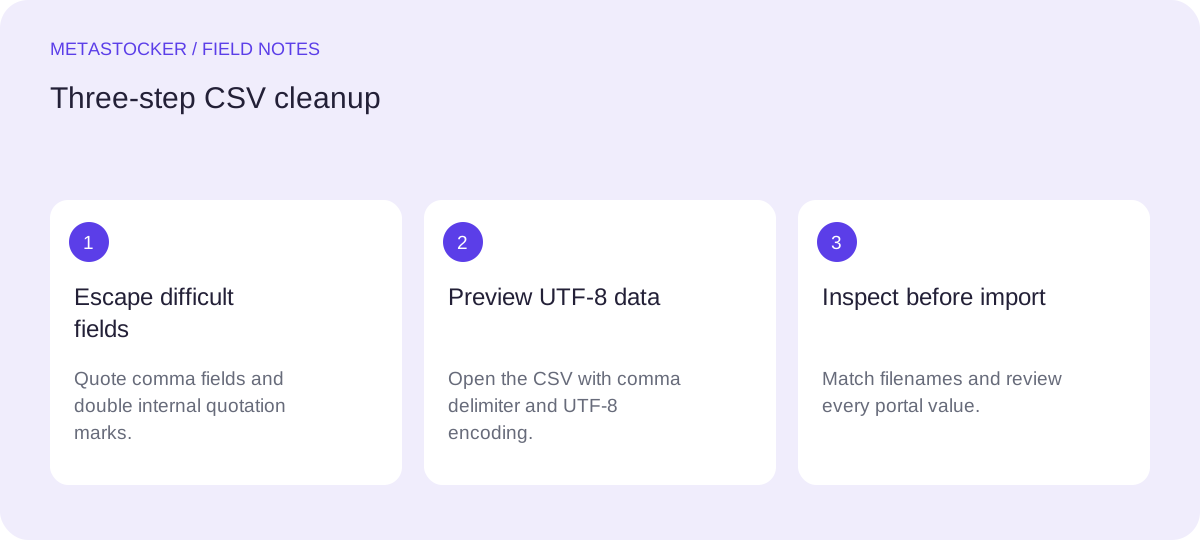
Use UTF-8 when saving the file so accented characters remain characters rather than replacement symbols. Then apply the CSV quoting rules consistently. A field containing a comma should be surrounded by double quotes. A field containing a double quote should also be surrounded by double quotes, and each internal double quote must be doubled.
A keyword list is often safest as one quoted field because it contains commas between keywords. Do not add quotes around every keyword individually. The correct structure is one CSV cell containing a comma-separated list.
- Comma inside a value: quote the whole field.
- Double quote inside a value: write it as two double quotes.
- Comma-separated keyword list: quote the complete keyword field.
- Save as UTF-8 and inspect the reopened file.
filename,title,keywords
sao-paulo.jpg,"Street sign ""Centro"", São Paulo, Brazil","street sign,Centro,São Paulo,Brazil,urban travel"
Worked example: prepare one difficult row
Example: suppose the image file is sao-paulo.jpg and the intended title is Street sign "Centro", São Paulo, Brazil. The title contains both quotation marks and a comma. The correct CSV representation begins and ends the title with a double quote, while the internal quotation marks become doubled quotation marks.
The keyword field also contains commas, so it is enclosed in double quotes. São Paulo is preserved as UTF-8 text. Keep the metadata factual: the example describes visible wording and a place name you have verified, rather than guessing a person, ownership, or an unseen location.
- Start with the exact filename: sao-paulo.jpg.
- Escape the title’s internal quotes as ""Centro"".
- Quote the entire keyword list.
- Use only relevant keywords and check the platform’s current maximum.
filename,title,keywords
sao-paulo.jpg,"Street sign ""Centro"", São Paulo, Brazil","street sign,Centro,São Paulo,Brazil,urban travel"
Preview it in a spreadsheet without corrupting it
Open a copy in your spreadsheet application using its text or CSV import dialog when available. Select comma as the delimiter and UTF-8 as the encoding. The preview should show three columns: filename, the complete title in one cell, and the complete keyword list in one cell. If the title breaks into extra columns, the comma was not protected by quotes or the wrong delimiter was selected.
Check the accented place name visually. Also click into the title and confirm that the displayed value has one pair of quotation marks around Centro, not two pairs. Some spreadsheet programs may alter formatting when saving, so after inspection reopen the exported CSV as plain text or repeat the import preview.
- Confirm the delimiter is comma.
- Confirm the character encoding is UTF-8.
- Look for exactly three expected columns in the example row.
- Reopen the saved CSV before sending it to a marketplace.
Generate and review metadata locally
MetaStocker can generate editable metadata locally in the browser and export formats including Adobe CSV. In local mode, the model runs on your device through WebGPU; the first model download needs internet. Loading a model into memory is different from keeping downloaded model files in the browser cache, and cache retention is not a promise of permanent offline availability.
Whether you generate the row manually or with MetaStocker, review each title and keyword field before export. The app’s requested tag count validation checks the count, not the factual accuracy or CSV suitability. If you use a batch description, write facts that apply to the whole batch; add file-specific details only after checking each result.
- Edit the generated title before exporting.
- Check that the title stays within the destination’s current limit.
- Inspect keyword relevance, order, spelling, and language.
- Export only rows that are ready for portal inspection.
Final import checks
Before importing, compare every CSV filename with the uploaded asset list, including extension and case. Confirm that no row has shifted columns, no accented characters have changed, and no newline or stray delimiter has entered a field. For Adobe Stock, use a conservative maximum of 49 keywords and verify the current upload screen because requirements can change.
After import, inspect the metadata in the contributor portal rather than treating a successful file selection as proof that every value arrived correctly. If the portal shows a broken title, return to the source row, fix the escaping or encoding, and export a fresh copy.
- Check filenames against uploaded assets.
- Confirm titles and keywords use the account’s required language.
- Verify current field and keyword limits in the contributor portal.
- Inspect imported values after the CSV is processed.
Before you continue
- Save the CSV as UTF-8.
- Quote every field containing a comma.
- Double every internal double quote.
- Keep the keyword list inside one quoted field.
- Preview the row with comma delimiter and UTF-8 encoding.
- Match filenames exactly, including extension and case.
- Review imported metadata in the destination portal.
Sources and editorial approach
Prepared with AI assistance. Worked examples are illustrative. Automated checks do not replace checking the requirements of your stock platform. How these guides are made.