 MetaStocker
Local AI
How to Test Gemma and Qwen for Stock Metadata
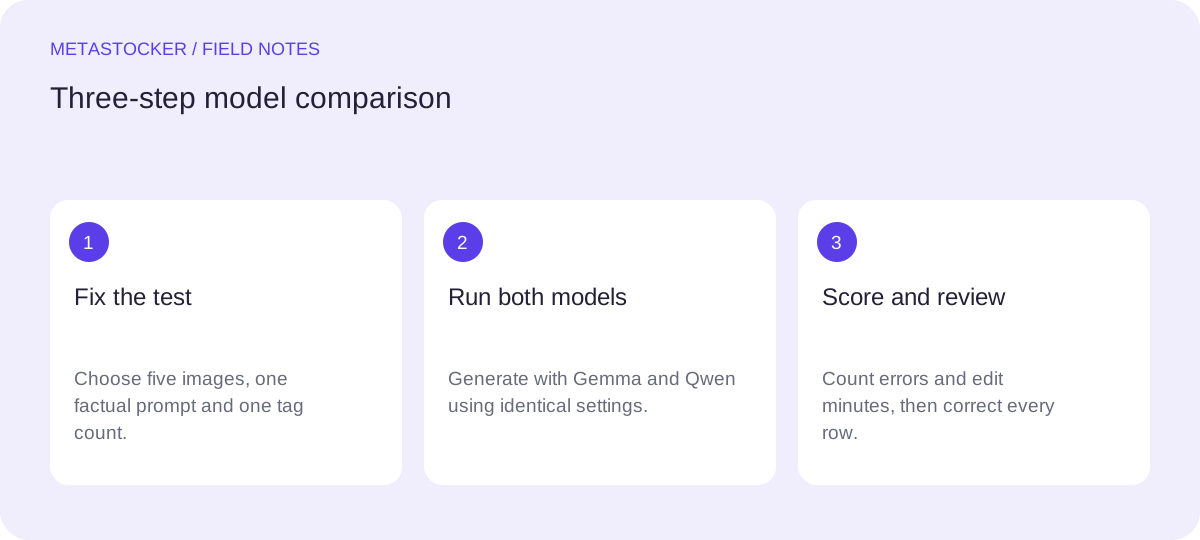
If you want to know whether Gemma or Qwen fits your stock-metadata workflow, run a small controlled test instead of relying on general model claims. The useful question is not which model is universally better. It is which one gives you fewer factual corrections, more relevant keywords and a review process you can repeat. MetaStocker provides local Gemma and Qwen models that run in your browser through WebGPU, so you can compare them on the same images without sending local-mode inference to an AI server. This guide shows how to prepare five images, keep the prompts and requested tag count identical, score errors and record editing time. Treat the result as your own workflow evidence, not a universal benchmark.
Define the test before opening the generator
Choose five images that represent the work you actually submit: for example, a product scene, a landscape, a food image, a person-free interior and a transport image. Avoid selecting only easy images. Include details that can expose guessing, such as uncertain species, unreadable labels or ambiguous locations.
Create one short prompt with facts you know. State the intended marketplace language and the exact number of requested tags. Keep the wording, image order and tag count unchanged for both models. Do not add hints to one model after seeing the other model’s output; that would turn the comparison into a moving target.
- Record filenames and a one-sentence factual reference for each image.
- Set a fixed requested tag count, such as 20, before both runs.
- Decide in advance what counts as a factual error, irrelevant tag or missing useful concept.
Test note: Five files; English metadata; 20 keywords per file; one identical prompt; manual review after each run.
Prepare a factual prompt
The prompt should provide context without writing the answer for the model. Mention visible or verified facts, intended use and restrictions. For a mixed batch, do not use broad statements that accidentally apply to every file. If you know that a photograph shows a ceramic mug but do not know its manufacturer, say so. Ask the model not to invent brands, people, places, species, dates or releases.
Keep the same prompt for Gemma and Qwen. If the app’s batch description is sent as generation context, write it as a factual instruction rather than a marketing paragraph. The model can still make mistakes, so every result remains editable and requires review.
- Include confirmed subject, setting and intended commercial context.
- Explicitly prohibit guesses about identity, ownership, location, species and brand.
- Do not ask for claims that cannot be verified from the image or your records.
Prompt: Create an accurate English title and 20 relevant keywords for each image. Use only visible or supplied facts. Do not infer names, brands, exact locations, dates, species or demographic traits. Put the most important concepts first.
Run Gemma and Qwen locally
In MetaStocker, select a local model, download it when needed and load it before generation. The verified local choices include Gemma 4 E2B, Gemma 4 E4B and Qwen3.5 2B; Gemma E2B is the default. Start with one parallel thread so the comparison is easier to interpret. A second thread can load another model copy and may require additional memory, so test it only if your device handles the first run reliably.
Browser support is not the same as sufficient capacity. WebGPU requires a compatible secure browser context, GPU and driver, and a supported browser may still lack enough memory for a model. Record model name, device, browser and thread count. Do not confuse a loaded model in memory with downloaded browser cache: unloading can retain cache, while deleting model files removes that local storage.
- Run all five images with Gemma using the fixed settings.
- Repeat with Qwen without changing the prompt or requested count.
- Note download, loading or memory problems separately from metadata quality.
Worked example: a five-image comparison sheet
Example workflow: you photograph five reusable water bottles on a studio table, a red bicycle beside a plain wall, a bowl of sliced oranges, a foggy forest path and a laptop showing a blank design screen. Your verified notes identify the objects but do not confirm a bottle brand, bicycle owner, forest location or laptop software. You use the same prompt and request 20 English keywords from Gemma, then repeat with Qwen.
For each file, record the model’s raw output before editing. Count factual errors, irrelevant or repeated keywords, missing important concepts and minutes spent making the row publishable. A keyword that is merely less useful is not automatically a factual error. A guessed brand or exact place is a factual error even if it sounds plausible. Keep corrections separate from omissions so the sheet explains what kind of work each model creates.
- Use one row per image and one block of columns per model.
- Save raw output separately from your edited final metadata.
- Do not report the sheet as a scientific benchmark or general model ranking.
File | Model | Factual errors | Irrelevant/repeated tags | Missing concepts | Edit minutes
bottle.jpg | Gemma E2B | 1 guessed brand | 2 | 1 | 4
bottle.jpg | Qwen3.5 2B | 0 | 1 | 2 | 3
Score for decisions, not for a winner
After both runs, compare totals and inspect individual rows. A model with fewer errors may still require more editing if its titles are awkward or its useful concepts are incomplete. A model that is faster on simple objects may be less suitable for images with ambiguous context. Your practical decision can therefore be conditional: use one model for straightforward batches and the other when its suggestions are easier to correct.
Do not convert a five-image result into a claim that one model is superior. Record the sample, prompt, tag count, settings and date so you can repeat the test after a model update or workflow change. The app validates the requested tag count, but that confirms quantity, not accuracy or marketplace acceptance.
- Choose the model with the safer review burden for your recurring image types.
- Keep examples of serious errors as warning cases for future prompts.
- Repeat with a new sample before changing a long-term workflow.
Review and export carefully
Review every title and keyword per file. Put the strongest concepts early where the target marketplace values ordering, remove repetition and reject guesses. Adobe’s general guide permits up to 49 keywords, but its contributor account language must match the metadata language. Always check the current contributor portal requirements before export or upload because marketplace policies can change.
MetaStocker can export marketplace CSV formats, but exporting is not submitting. Inspect filenames, metadata and platform-specific fields in the contributor portal. Do not expect the app to embed metadata into original files, guarantee acceptance or preserve unfinished work after a tab closes. For video, inspect the full motion yourself because sampled previews may miss important context.
- Export only rows you have reviewed and corrected.
- Check the current portal rules and exact filename matching.
- Keep the original media and your comparison sheet separate from exported CSV files.
Before you continue
- Select five representative images, including difficult or ambiguous cases.
- Write one factual prompt and fix the requested tag count.
- Run Gemma and Qwen with identical images, settings and order.
- Record model, device, browser, thread count and any memory issues.
- Count factual errors, irrelevant or repeated tags, omissions and edit minutes.
- Review every row before export and check current marketplace requirements.
- Describe the result as a local workflow test, not a universal ranking.
Sources and editorial approach
Prepared with AI assistance. Worked examples are illustrative. Automated checks do not replace checking the requirements of your stock platform. How these guides are made.