 MetaStocker
Local AI
Check Your Browser and Computer for Local Vision AI
Local vision AI can generate stock metadata inside your browser, but a compatible-looking browser is only the starting point. Before processing a batch, check the secure connection, confirm WebGPU is available, understand the difference between storage and working memory, and test one image. These steps help you identify whether a problem is caused by the browser, the graphics system, insufficient memory, or the input itself. This guide uses MetaStocker as the concrete example: its local mode runs vision and thinking models in WebGPU workers on your device, without sending images to an AI server. Local mode requires no account or API key, but the first model download requires internet access.
1. Start with the right security context
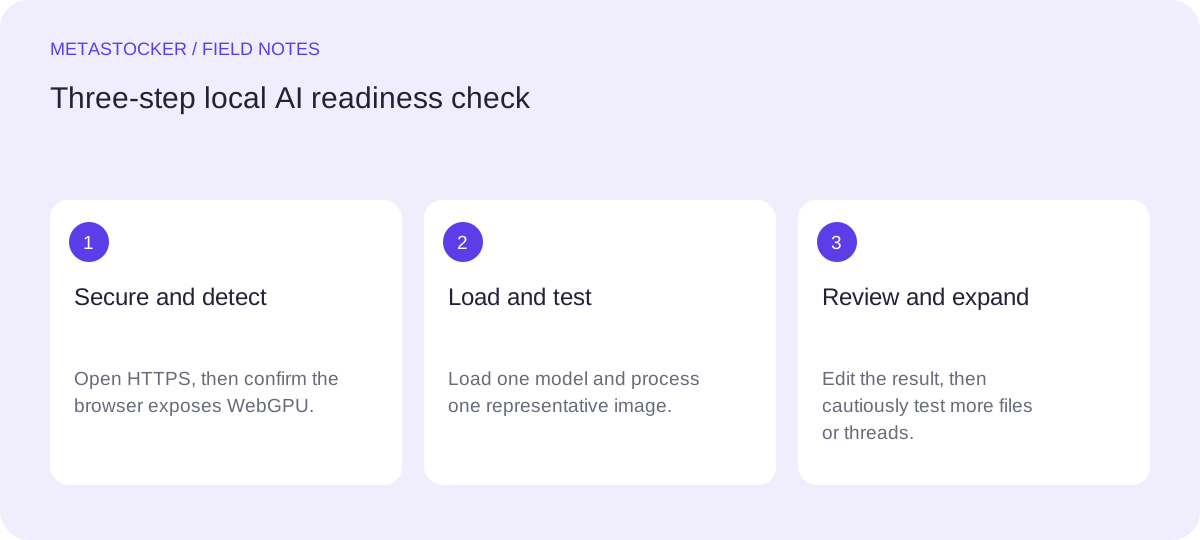
Open the app through its normal HTTPS address and check that the browser shows a secure connection. WebGPU requires a secure context, as well as a compatible browser, GPU, and driver. A page that is merely open in a browser is not necessarily ready for local inference.
Avoid judging readiness from an old tab or a copied local file. If the page is not securely served, the browser may block the features needed by the local worker. Reload after updating the browser or changing graphics settings, then test again in a fresh tab.
2. Treat WebGPU detection as a starting signal
A WebGPU detection message means the browser can expose the API. It does not prove that a selected model will load, that the GPU has enough usable memory, or that generation will complete reliably. Drivers, browser settings, available graphics memory, and the model size still matter.
Use the app's local model controls to download and load one model. MetaStocker's default local model is Gemma 4 E2B; Gemma 4 E4B and Qwen3.5 2B are also available. Start with the default or smallest practical option, especially on an unfamiliar machine.
- Confirm the page is HTTPS.
- Confirm WebGPU is detected.
- Load one model before starting a batch.
- Record the exact model and browser used when troubleshooting.
3. Separate disk cache from active memory
The model download occupies browser-managed storage on disk. Active inference needs working memory, including GPU or system memory used while the model is loaded. These are different constraints: having free disk space does not guarantee enough memory to run the model, and a model may remain cached without being active.
MetaStocker can unload a model from memory while retaining its browser cache, and it can delete browser model files. Cache behavior belongs to the browser: stored data can be evicted, and permanent storage or full offline availability should not be assumed. The first download needs internet access even though later local inference runs on the device.
- Check free disk space before downloading.
- Leave headroom for the browser and other applications.
- Do not interpret a cached model as a loaded model.
- Expect the browser to manage and possibly evict cached data.
4. Use a one-image readiness test
Choose one representative image with a readable subject and enough context to describe it accurately. Do not begin with a mixed folder, a large batch, or a difficult file. In MetaStocker, add the image, load the local model, generate metadata, and inspect every field before exporting.
A successful test means more than a model appearing in a menu. The image should process to editable output, and the result should be factually defensible. If the browser freezes, the worker fails, or memory pressure appears, close other heavy tabs, reload, and retry with one model and one image. A failed test is useful diagnostic information; it is not evidence that every image or model will fail.
Example readiness test:
1. Open MetaStocker over HTTPS.
2. Confirm WebGPU is detected.
3. Load Gemma 4 E2B.
4. Process one landscape image.
5. Check title, description, and tags against visible facts.
6. Export only after editing the result.
5. Tune parallel work cautiously
Once one image succeeds, test a second image rather than immediately enabling a large batch. MetaStocker's local parallel threads can each load their own model copy, so additional threads may increase memory demand. Begin with one thread and test two only if the machine remains stable.
Keeping more work in flight can reduce waiting in some setups, but it also makes failures harder to diagnose and can exhaust available memory. Stability and review quality are more important than a larger thread count. For video, remember that generated metadata is based on sampled previews; inspect the full motion yourself before accepting claims.
6. Protect data and verify the handoff
In local mode, photos, prompts, and results stay on the device while inference runs in the browser. Model downloads still contact external hosts. If you choose MetaStocker's optional personal OpenAI API mode instead, previews and context are sent to OpenAI, and your API key remains your secret; do not embed or share it publicly.
Before exporting, review editable results per file. The app can export formats for several marketplaces, but export is not upload or submission, does not guarantee acceptance, and does not embed metadata into original files. Check the current contributor portal requirements, then inspect the imported metadata there when you perform a manual upload.
Before you continue
- Use the HTTPS app address.
- Confirm WebGPU detection, then test real model loading.
- Check disk space separately from RAM and GPU memory.
- Download and load one model only at first.
- Process one representative image.
- Review factual accuracy before exporting.
- Increase parallel threads only after a stable single-thread test.
- Check the current marketplace portal before manual upload.
Sources and editorial approach
Prepared with AI assistance. Worked examples are illustrative. Automated checks do not replace checking the requirements of your stock platform. How these guides are made.