 MetaStocker
Local AI
How Many Local AI Threads Should You Run?
Running several local AI requests at once can make a batch feel more efficient, but parallelism is not free. Each local worker may need its own loaded model copy, so adding threads can increase memory use and create contention for the same GPU. The sensible question is not “What is the maximum number?” but “What is the highest setting that remains stable and useful on this device?”
This guide uses MetaStocker’s local browser execution as the example. The method also applies to other browser-based local models: establish a one-thread baseline, test two threads with a small batch, and keep the higher setting only when it improves the workflow without errors or distracting slowdowns.
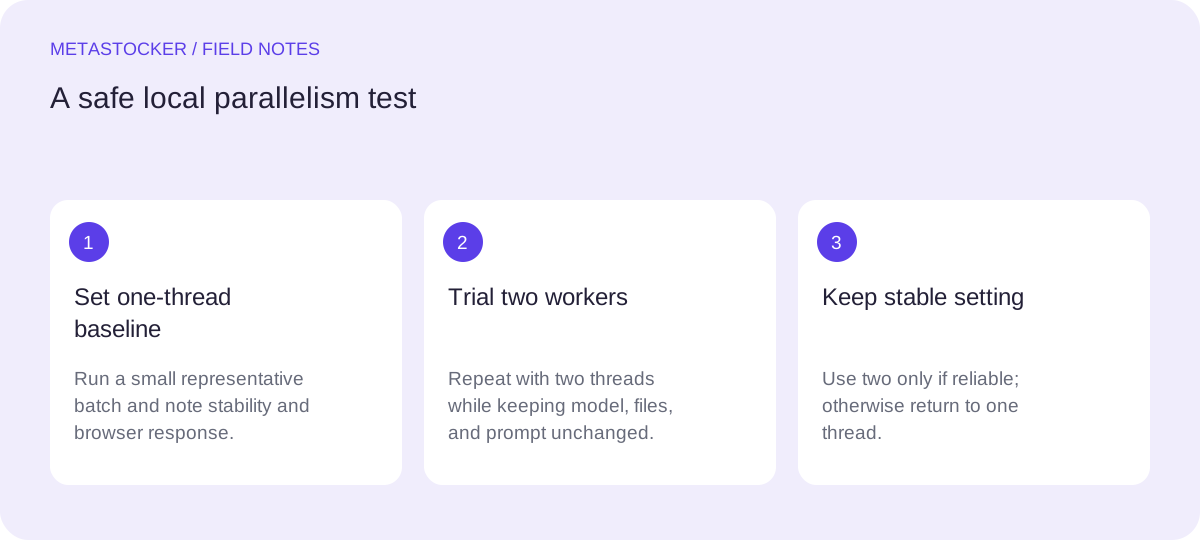
What a local thread actually consumes
A local thread is a worker handling an AI request. In MetaStocker, local execution uses WebGPU workers in the browser. A second worker can process another request, but it may also load a separate copy of the selected model. That means memory use can grow in a way that is closer to “one model per active worker” than to a small control setting.
The exact requirement depends on the model, browser, GPU, driver, image dimensions, prompt context, and what else is open. WebGPU support alone does not prove that the device has enough memory for a model. Treat the thread count as a workload setting, not as a specification that can be chosen from RAM alone.
- More threads can increase throughput when the device has headroom.
- More threads can also cause memory pressure, contention, retries, or browser errors.
- A browser cache is stored model data; it is not the same as active model memory.
Begin with a one-thread baseline
Start with one local thread and a small representative batch. Use the same model, prompt, file type, and browser session that you expect to use for normal work. Record practical observations: whether the model loads, whether requests complete, how responsive the browser remains, and whether the results need unusually heavy correction.
MetaStocker requires the model to be downloaded before local use, and you explicitly load it for inference. Unloading can release active memory while retaining cached model files; deleting browser model files is a separate action. Do not interpret a completed download as proof that several active workers will fit.
- Close unnecessary GPU-heavy tabs before testing.
- Use ordinary production-sized previews rather than only tiny test files.
- Keep the one-thread result as your comparison point.
Test two threads as a controlled step
After the baseline is stable, test two threads with a small batch. Keep everything else unchanged. Compare the whole workflow, not just the first completed item: model startup, queue behavior, browser responsiveness, completion reliability, and the amount of metadata review required.
Two threads are a useful next experiment because they reveal whether the device has practical headroom without jumping immediately to a large, risky setting. If two threads complete reliably and the browser remains responsive, use them for a longer trial. If the run is slower overall, unstable, or difficult to interpret, return to one.
- Change one variable: thread count.
- Stop the trial when the browser becomes unstable or errors repeat.
- Prefer reliable completion over a crowded queue.
Hypothetical example: A contributor has 12 food-preparation images and chooses Gemma E2B. With one thread, they process four images first and note stable browser behavior. They then repeat with two threads using four comparable images. If the second run finishes acceptably and the browser stays responsive, they try the remaining images at two threads. If both workers compete for memory and the second run takes longer or fails, they keep one thread. This is a workflow decision, not a measured claim about speed.
Diagnose a slower parallel run
A parallel run can be slower even when two requests are active. The workers may compete for GPU memory, the browser may spend time moving data, or the device may begin recovering from memory pressure. Model loading can also dominate a short batch, making a larger thread count look disappointing when the workload is too small.
Check whether the slowdown is consistent across a larger, comparable sample. Watch for delayed interface response, incomplete generations, repeated errors, model reloads, or a browser tab that becomes unstable. Compare total usable output and review effort, not merely simultaneous request count.
- If startup dominates, test a batch large enough to expose steady-state behavior.
- If only large previews fail, reduce preview dimensions or use a lighter workload where appropriate.
- If the browser is sluggish, stop other GPU-intensive work and retest.
Diagnose errors and memory pressure
Errors after increasing parallelism are evidence that the setting is too aggressive for the current environment, even if one thread works. Return to one thread to confirm the model and files still work. Then test two threads with fewer files, simpler context, or a fresh browser session. If one thread remains stable and two does not, the practical answer is one.
Do not assume that adding system RAM will solve every issue. Browser, GPU, driver, model, and preview constraints can all matter. Likewise, do not assume that a cached model consumes the same resources as an actively loaded model. If failures persist at one thread, investigate the model load, browser compatibility, WebGPU support, file previews, and available device resources before changing parallelism again.
- Reproduce the issue at one thread.
- Separate model-loading failures from batch-size failures.
- Keep a short note of browser, model, file type, and thread count for each test.
Choose a repeatable operating rule
For most contributors, a simple rule is enough: use one thread by default, test two on the actual device, and keep two only when it is stable and meaningfully more convenient. There is no universal RAM formula or magic thread count because active model copies and browser workloads vary.
Recheck after changing the model, browser, driver, preview size, or prompt context. MetaStocker’s local inference stays on the visitor’s device; it does not automatically fall back to a cloud model when local parallelism fails. Review editable metadata before export, especially for video, where sampled previews cannot represent every moment of the full motion.
- Default: one thread.
- Experiment: two threads, small controlled batch.
- Decision: retain the highest stable setting, not the highest available setting.
Before you continue
- Run a representative one-thread baseline.
- Test two threads while changing no other variable.
- Watch active memory symptoms, browser responsiveness, and errors.
- Compare total usable output and review effort.
- Return to one thread when parallelism is slower or unstable.
- Retest after changing models, browsers, previews, or prompts.
- Review metadata before exporting ready rows.
Sources and editorial approach
Prepared with AI assistance. Worked examples are illustrative. Automated checks do not replace checking the requirements of your stock platform. How these guides are made.