 MetaStocker
Local AI
How to Use an OpenAI API Key in MetaStocker
MetaStocker can generate metadata locally without an OpenAI API key. Its local mode runs supported vision and thinking models in your browser, so a key is optional rather than a prerequisite. You may still choose personal OpenAI API mode when you prefer to use your own developer account for generation. This guide explains the decision, the account boundary, safe key handling, and a practical workflow for preparing one image batch.
An API key is a secret credential for developer services. It is different from your ChatGPT conversation access, and developer API billing is handled separately from ChatGPT. The exact account screens, limits, and pricing can change, so check the current OpenAI developer account pages before creating or using a key. MetaStocker’s optional API mode sends previews and context to OpenAI; local mode does not use AI server inference.
Decide whether you need a key
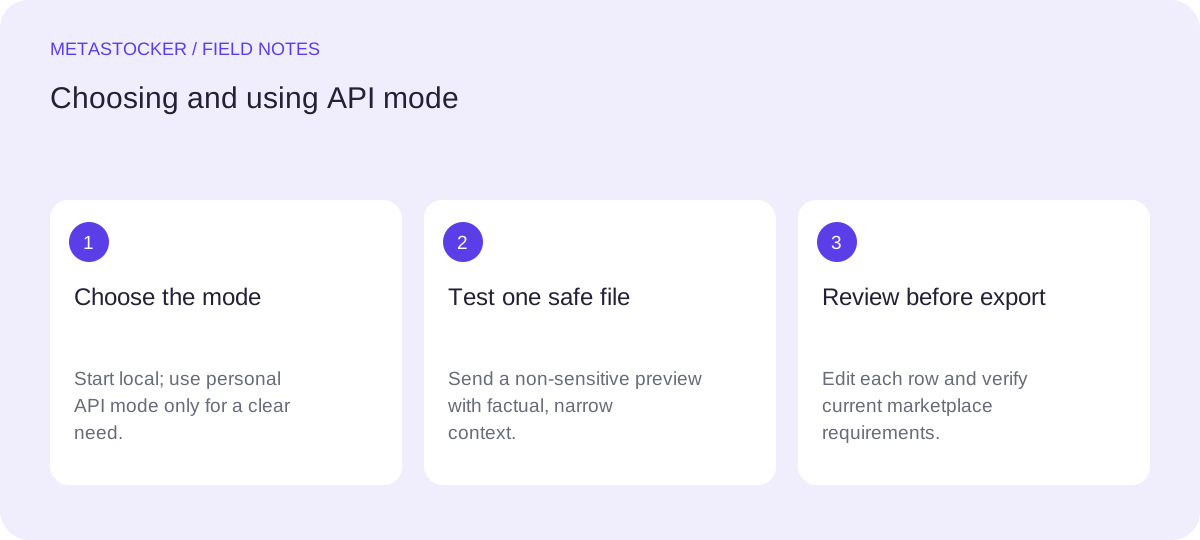
Start with local mode if your priority is keeping photos, prompts, and generated results on your device. MetaStocker provides local models including Gemma 4 E2B, Gemma 4 E4B, and Qwen3.5 2B, with Gemma E2B as the default. The first model download needs internet, and the browser uses WebGPU-compatible hardware and drivers.
Choose personal API mode only when the tradeoff is worthwhile for your workflow. The request can use your own OpenAI API access, but previews and context leave the browser and are sent to OpenAI. This is a data-handling decision, not merely a button preference.
- No key is needed for local generation.
- Local mode and API mode are separate choices.
- A browser model download is not the same thing as an API request.
Example decision: You are labeling non-sensitive product photos and want to avoid sending previews to a service. Begin with local mode. If the local model cannot produce the style of descriptions you need, compare that result with a small API batch only after reviewing your privacy and account settings.
Understand the account boundary
An OpenAI API key belongs to developer API access. Having ChatGPT access does not automatically mean that API use is included, and API billing is separate from ChatGPT. Before creating a key, confirm that you are in the intended developer account or project and read the current billing and usage information there.
Avoid relying on an old tutorial that names a particular menu, balance, or price. Interfaces and policies can change. The useful constant is the separation: MetaStocker uses your key to request the optional API service, while your developer account controls that API activity.
- Check the current developer account documentation first.
- Treat API usage as separate from a ChatGPT subscription.
- Review the selected project or account before creating credentials.
Create the key with a safety plan
Use the current OpenAI developer console to create an API key, following the account’s present instructions. Copy it only into the intended private input in MetaStocker. Do not paste it into a blog post, spreadsheet shared with clients, public repository, screen recording, or browser extension.
A key is not a harmless configuration value. Anyone who obtains it may be able to make API requests against the associated account. Keep access limited, use the smallest practical scope if the current console offers such controls, and remove or rotate a compromised key through the developer account. Never ask a contributor or client to send you their key.
- Keep the key private from people and public files.
- Do not embed a personal key in public client-side code.
- Rotate or revoke it if you think it was exposed.
Use the key in MetaStocker carefully
Open MetaStocker and select its optional personal OpenAI API mode. Enter the key only where the app requests it, then test with one non-sensitive image and a narrowly written context. Because the app sends previews and context in this mode, remove unnecessary private information from the image and prompt.
A batch description is context for generation, not permission to invent facts. State what is visibly and deliberately present: for example, “studio photograph of a blue ceramic mug on a pale table; commercial image; no people.” Avoid blanket tags for a mixed batch. Extra tags should still be checked for each file.
- Test one harmless file before a larger batch.
- Describe visible, relevant facts only.
- Review every generated title, description, and tag.
Example test context: “Commercial product photo of a matte green reusable bottle on a neutral background. Mention the bottle and studio setting; do not infer brand, location, owner, material certification, or sustainability claims.”
Review output before exporting
An API key does not make metadata accurate or platform-compliant. MetaStocker lets you edit results and export formats for services such as Adobe, Envato, Shutterstock, and Freepik, but the exporter does not upload or submit files and cannot guarantee acceptance. Export only rows you have checked.
For video, generation relies on sampled previews, so inspect the full motion yourself. For .ai files, provide a readable preview; not every file will work. Check that titles and keywords describe the actual asset, remove repeated or irrelevant terms, and confirm the current contributor portal requirements before uploading.
- Inspect visual content and generated text together.
- Check filename matching and platform-specific limits yourself.
- Treat exported CSV as a working file, not proof of acceptance.
Handle the key after the session
Do not assume closing the tab is a complete security strategy. Follow the current OpenAI account controls for reviewing, rotating, or deleting keys, especially if the browser was shared or the key was copied to a temporary note. Keep usage records and account alerts enabled when those controls are available.
If you return to local mode, remove the key from the app input and continue without it. Local model files may remain in browser storage until you explicitly delete them; that storage is separate from active model memory and is not evidence that an API key is stored there.
- Remove temporary copies of the secret.
- Rotate a key after suspected exposure.
- Use local mode again when API access is unnecessary.
Before you continue
- Confirm that local mode does not meet your needs before using an API key.
- Check the current OpenAI developer account and billing information.
- Create and paste the key only in the intended private field.
- Send a single non-sensitive test image first.
- Review previews, context, and generated metadata for factual accuracy.
- Edit and inspect every row before exporting.
- Verify current marketplace requirements before any manual upload.
- Rotate or revoke the key if it may have been exposed.
Sources and editorial approach
Prepared with AI assistance. Worked examples are illustrative. Automated checks do not replace checking the requirements of your stock platform. How these guides are made.