 MetaStocker
Local AI
How to Fix WebGPU Memory Errors During Local Keywording
A WebGPU memory error during local keywording usually means the browser cannot reserve enough usable GPU memory for the selected model and workload. The message does not automatically mean that your files are damaged or that the generated keywords are wrong. It can appear when another model remains loaded, when several parallel workers each hold a model copy, or when another application is using the GPU. This guide gives you a practical recovery sequence for MetaStocker’s local mode, then shows how to identify different failure types. The goal is to get one small test file working before returning to a larger batch.
First identify what failed
Separate the failure by timing. If the model cannot download or load, investigate internet access, browser permissions, storage availability, or WebGPU compatibility. If loading succeeds but generation stops with a memory message, concentrate on active model memory, worker count, and competing GPU applications. If generation finishes but the tags are poor, that is an output-quality problem rather than proof of a WebGPU failure.
A browser may support the WebGPU API while the GPU, driver, or available memory is still insufficient for a particular model. A cached model file is also not the same as a model actively loaded in memory. Keeping downloaded files does not guarantee that a later request can allocate the required working memory.
- Record whether the error happened during download, model loading, generation, or export.
- Do not delete browser model files as a first response; deletion may only force another download.
Unload models before retrying
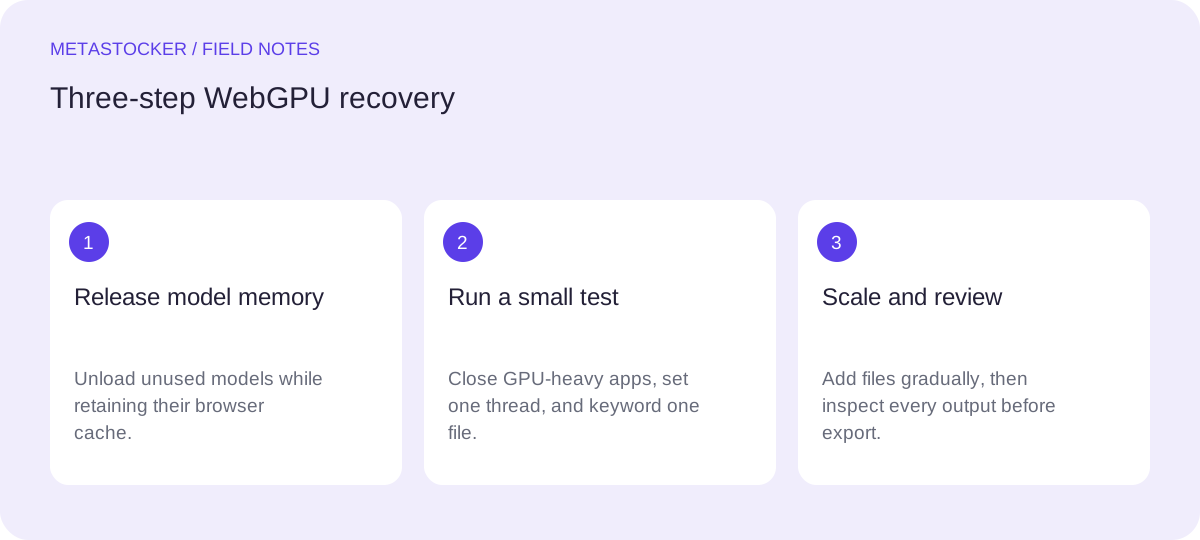
In MetaStocker, use the explicit unload control for models you are not using. Unloading releases the active model from memory while retaining its browser cache, so a later load may not require downloading the model again. This is different from deleting the browser model files, which removes the stored download and may require internet access again.
If you switched between Gemma 4 E2B, Gemma 4 E4B, and Qwen3.5 2B, check that the previous model is no longer active before starting another request. Close or refresh unrelated heavy browser tabs if the browser appears to retain GPU resources. Then load only the model you intend to test.
- Unload unused local models.
- Keep cached files unless you are deliberately freeing storage or repairing a corrupt download.
- Remember that local inference stays in the visitor’s browser; it is not performed by an AI server.
Reduce parallel work to one thread
Parallel local threads can increase throughput, but each thread can load its own model copy. That makes a multi-thread request much more demanding than a single-file test. Start with one local parallel thread. If one thread works consistently, test two later with a small batch and watch for the same error.
Also reduce the immediate workload. Choose one representative image rather than a large folder, and avoid starting several generation actions at once. A small successful request tells you that the basic model and browser path work; it does not prove that a larger batch will fit in memory.
- Set local parallel threads to 1.
- Use one image for the first retry.
- Increase to 2 threads only after the one-thread test is stable.
Example: You select Qwen3.5 2B and a batch of 40 images, then receive a memory error. Unload any other model, set threads to 1, and retry with one image. If it succeeds, add files gradually. If two threads fail while one works, keep one thread and accept slower processing for this device.
Free the GPU and retry cleanly
Before retrying, close GPU-heavy applications such as video editors, 3D tools, games, screen-recording software, and other browser tabs running graphics-intensive work. Pause other local AI tasks as well. These programs can reduce the memory available to the browser even when the computer has plenty of general system RAM.
After closing them, return to MetaStocker, confirm the intended model is loaded, and run the same one-file test. If the error persists, restart the browser or computer to clear resources held by a stuck process. This is a practical diagnostic step, not a guarantee that the hardware is compatible.
- Save work in other applications before closing them.
- Retry the same small file so the comparison is meaningful.
- If repeated tests fail, check browser, driver, GPU, and secure-context compatibility.
Distinguish download and compatibility problems
A download or network problem commonly appears before the model is available: the transfer stalls, fails, or cannot be completed. Check the connection, storage permission, and whether the browser can reach the model host. Do not interpret a failed first download as a memory diagnosis. The first local model download requires internet access, even though later inference runs in the browser.
An incompatible browser, GPU, or driver can prevent WebGPU initialization or make a model unusable. Updating the browser or graphics driver may help, but a browser that exposes WebGPU still may not provide enough memory. If the same model fails on a small file after a clean one-thread retry, test a different supported model and document the browser and GPU details for further investigation.
- Download failure: check network and storage first.
- WebGPU initialization failure: check secure context, browser, GPU, and driver.
- Memory failure during generation: reduce active models, threads, and competing GPU use.
When the result is bad, review the output
A successful run can still produce inaccurate or irrelevant metadata. Do not treat the requested tag count as evidence that every tag is correct. Review each file’s title and keywords, remove guesses about people, ownership, location, releases, or species, and retain only facts supported by the image or video preview. For video, inspect the full motion because sampled previews do not show every moment.
Use batch description as factual context for the batch, not as a blanket list of tags. Mixed batches need per-file review. When your metadata is ready, export only reviewed rows. The exporter creates files for supported marketplace formats; it does not upload or submit them, guarantee acceptance, or embed metadata into the original files. Check each marketplace’s current contributor portal requirements before import or submission.
- Review every generated row.
- For video, inspect the full clip.
- Treat exported CSV as a working file that still needs portal-side checking.
Before you continue
- Unload every unused model and keep cached files unless deletion is intentional.
- Set local parallel threads to 1.
- Close GPU-heavy applications and retry one small file.
- Classify the failure as download, compatibility, memory, or output quality.
- If the test works, add files gradually before increasing threads.
- Review titles and keywords for factual relevance before export.
- Check current marketplace upload rules and inspect imported metadata in the portal.
Sources and editorial approach
Prepared with AI assistance. Worked examples are illustrative. Automated checks do not replace checking the requirements of your stock platform. How these guides are made.